Window decorations revisited (or: using the right tool for the job)

Today let’s talk a bit about the importance of using the right tool for the job. There’s a bit about this in my post about KHamburgerMenu, about how it was not designed to be a universal thing for every app but rather the ones where it can makes sense. No need to shoe-horn everything into an identical paradigm.

So I want to use that context to talk a bit more about window decorations, and specifically client-side decorations–everyone’s favorite topic for getting the blood pumping! 🙂 But first, some terminology to make sure we’re all on the same page:

“Client-side” refers to content is drawn by the app or window itself (the “client”)

“Server-side” refers to content drawn for the app or window by something else (typically the window manager, or the “server”).

Now, KDE apps typically do not use client-side-decorated headerbars for their header areas like GNOME apps do. Instead, we generally hew to the traditional arrangement of a titlebar, menubar, and toolbar. The titlebar is “server-side” because it’s drawn by KWin, our window manager. Everything below the titlebar–such as the window’s menubar, toolbar, and content view–are drawn by the window itself; the window being a “client” of the window manager. Hence, “client-side”.

In the interest of aesthetics, our Breeze theme has recently been updated to visually merge these components, even though they’re still drawn by different parts of the stack and still serve different functions (though you can still drag the window from any empty area of the header, not just the titlebar). Here’s how it looks in Okular, a fairly traditional app with a titlebar, menubar, and toolbar:

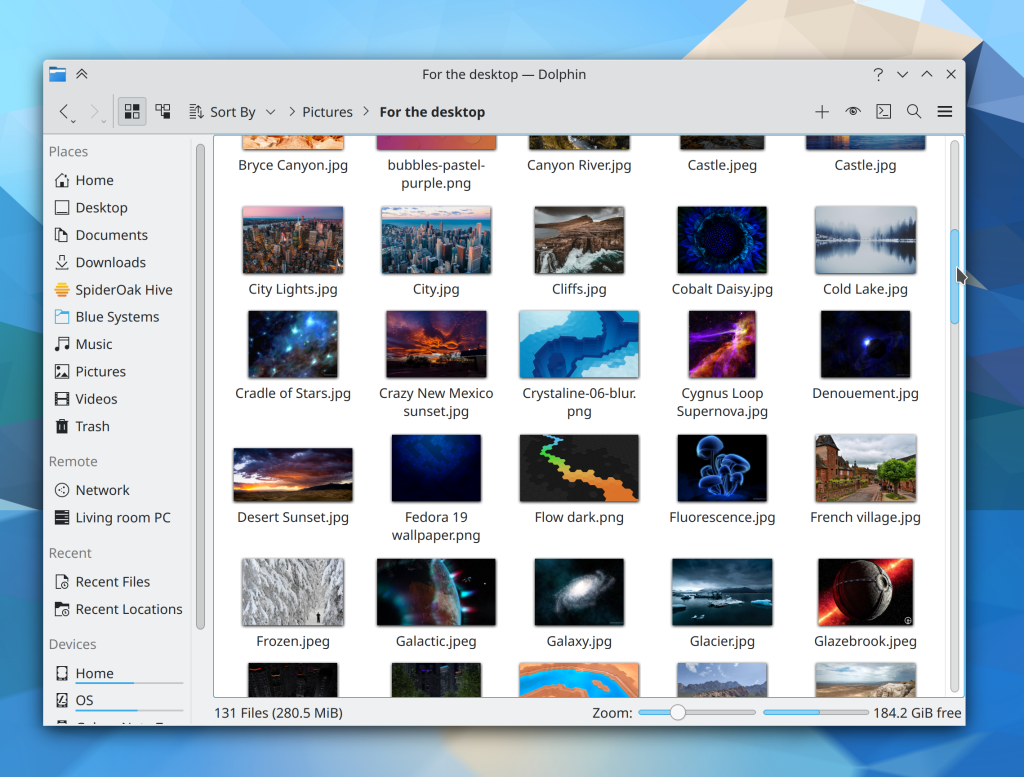
…And for Dolphin, which has a hamburger menu in its toolbar by default rather than a menubar:

Not too bad, eh? Yet we have often been asked why we don’t use GNOME-style client-side decoration headerbars, which would provide the same merged look and save some vertical space too. I wrote a series of blog posts about this a few years ago which are still largely accurate, so I will paraphrase:

Why our apps don’t use CSD headerbars

If we did, they be worsened in the following ways:

  1. They would either lose a lot of space used for dragging the window, or else lose the ability to click-and-drag-and-release to activate headerbar items in menus, comboboxes, pop-up menus, etc. You can’t have both with CSD headerbars.
  2. There would be no place to display the name of the app, window, or open document–unless the app left a big empty space in the middle of the header for it. Even then it would be up to every app to implement this title itself, rather than it being an automatic thing provided by the window manager.
  3. We would probably have to remove or severely restrict how customizable the toolbar can be given the above restrictions on space.
  4. Also given the above restrictions, the CSD headerbar would probably have to omit some of the window decoration buttons currently present on the SSD titlebar, since they would be taking up a lot of space that apps would need. Customization flexibility would also be reduced.
  5. Windows would all have to have hamburger menus with no provision for a traditional in-window menubar, since there is nowhere to put one in a CSD headerbar without it looking really weird.
  6. When a window is not responding, the close button would not work to force-quit it, since it would be drawn by the thing that is not responding (the window) rather than a thing that is still working (the window manager)… unless the window manager itself implemented a hack for this. So it would not work in other window managers.
  7. It would suck for people using our apps on other platforms without window manager level support for CSDs.

So there’s your answer. 🙂

But wait, what about DWDs?

“DWD” refers to “Dynamic Window Decorations“, an old KDE proposal to marry visual appeal of CSDs with some of the functionality of SSDs by allowing the app to pass various actions to the window manager, which would then put them in the titlebar for the app. The proposal looked pretty like CSD apps do, and would have solved problem #6 and #7 from the above list, and improved on problem #4–but the other problems would have remained. So the idea was ultimately shelved and we did not apply it to our app windows. Too much cost, not enough benefit. That’s how it goes, sometimes.

Actually I lied, we totally use DWDs already… sort of

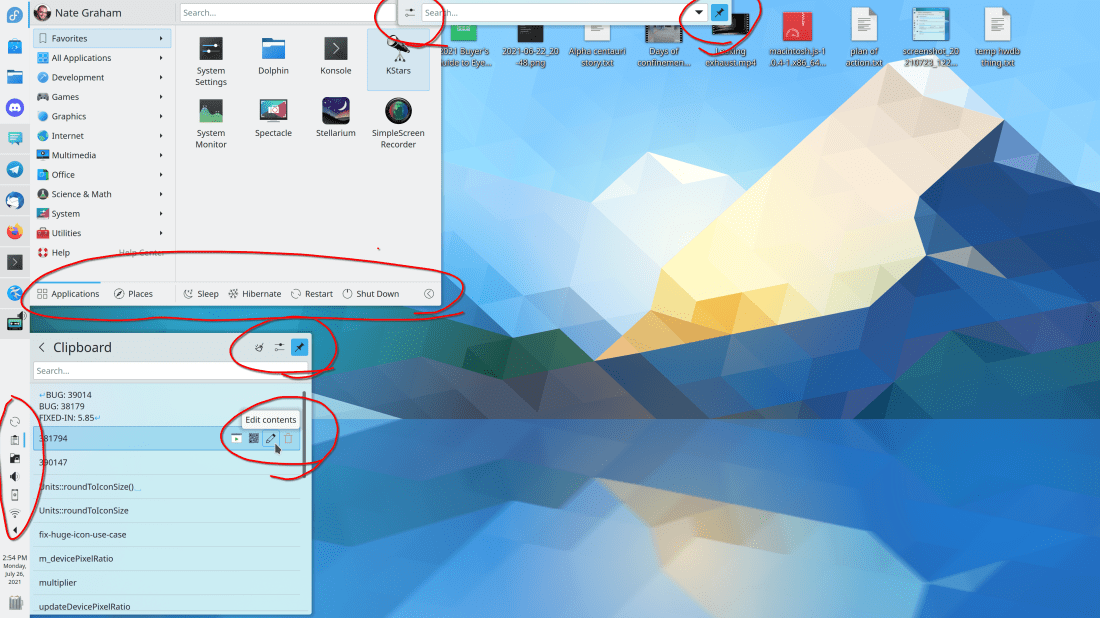
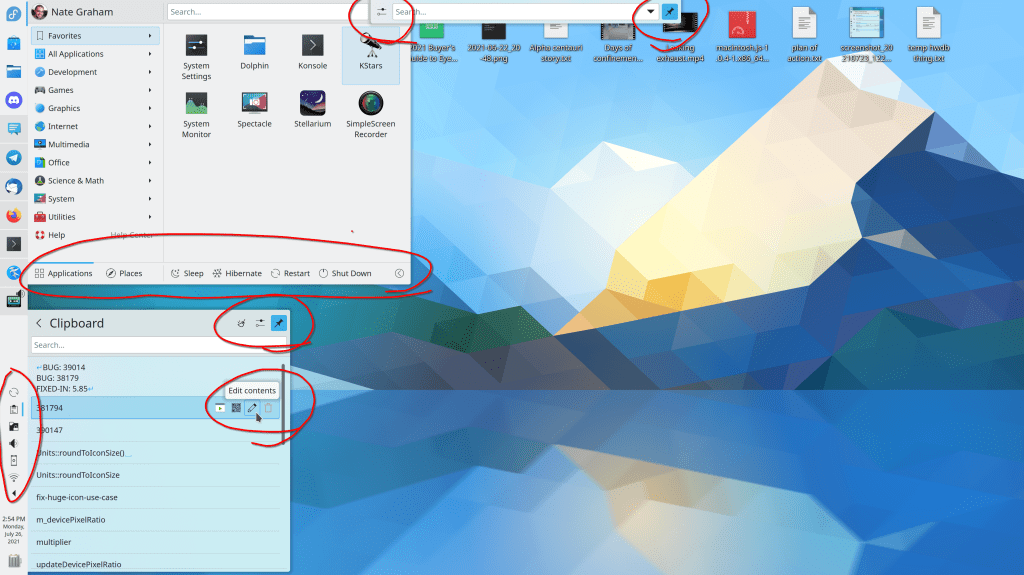
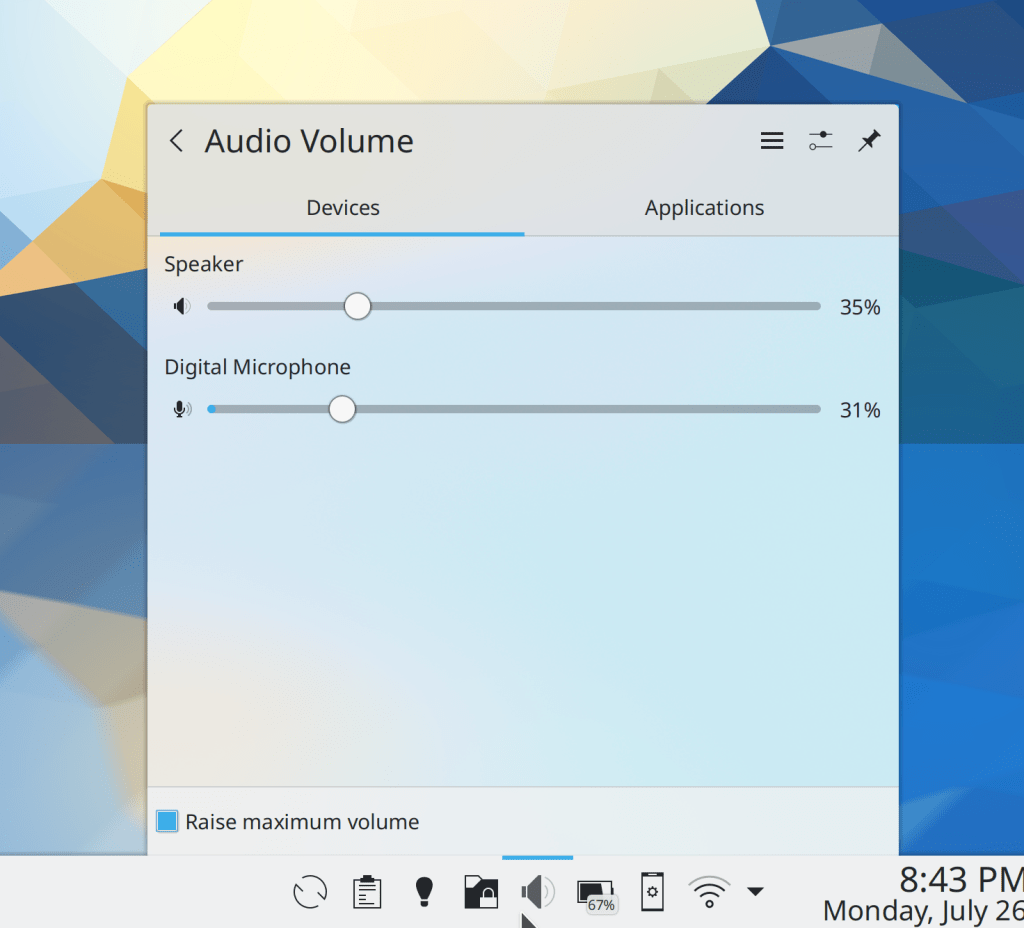
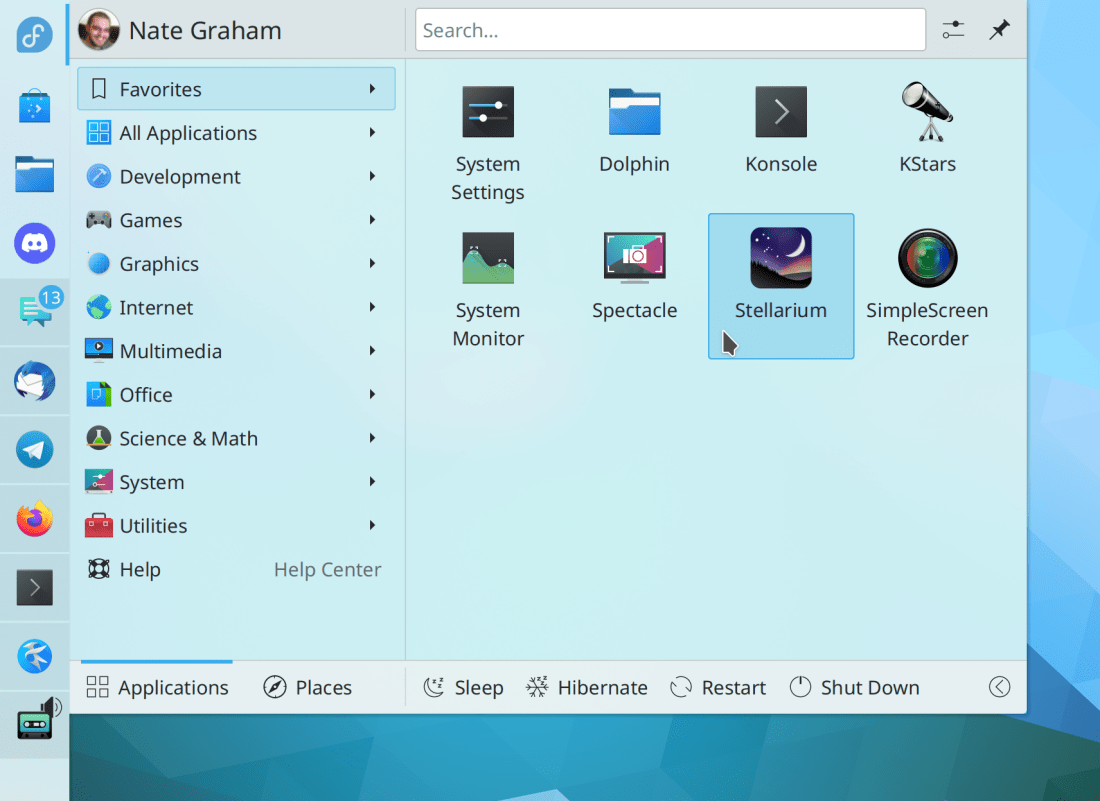
You might not have realized it, but Plasma’s System Tray uses the rough concept of the DWD paradigm and has for a few Plasma releases! Here, take a look at the Clipboard applet:

That “clear” action with the broomstick is drawn by the “server” (in this case, the System Tray popup) but the action came from the applet (which is acting as the client)! the Clipboard applet told the System Tray, “Hey, here’s a “Clear history” action for you to display with this icon, that tooltip text, and so on”. And the System Tray itself took care of turning that action into a clickable button. The Configure icon next to it is the same.

This arrangement was actually not deliberate; we kind of re-discovered the DWD concept by accident. But it turned out to work really well in the System Tray. This is because the System Tray popups don’t suffer from any of the remaining problems plaguing CSDs:

  1. The System Tray popup is not movable by dragging, so you can fill the top bar with lots of stuff without impairing that or losing the click-drag-release method of getting at menu items.
  2. The name of the applet isn’t robbing anything of space because because these are every small applets with a limited set of features; the number of actions is super limited.
  3. The header actions don’t need to be customizable because the full set of actions can be presented by default.
  4. Not being a movable window, there are no relevant window decoration buttons to customize, except for the single “Pin” button that keeps the popup open, which we can always show because there’s always space for it.
  5. These applets never had full menubars anyway, so nothing has been lost.

To be clear, there are still no DWDs for app windows, and there probably never will be–because they would basically just be slightly-less-bad CSD headerbars. However the DWD concept really shines for small platform-specific widgets!

It’s all good

So like KHamburgerMenu, we now have another tool in our toolkit. We can apply it to the parts of our software where it makes sense, without feeling the pressure to force it everywhere. Because the best craftsmanship really does come from using the right tool for the job.

This week in KDE: the Plasma 5.22 beta is here!

This week we finished up the last of our feature work for Plasma 5.22, so go test out the beta! We also started on 5.23 feature work, fixed a bunch of Wayland issues, and polished up our apps a bit more. Check it out:

New Features

The Digital Clock applet now has an option to display timezones not as their code or city name, but rather the offset from UTC time (Momo Cao, Plasma 5.22):

Bugfixes & Performance Improvements

Okular now correctly renders embedded PNG images in .cbz comic book files (Albert Astals Cid, Okular 21.04.2)

Gwenview now uses a standard Qt-provided graphics component for its image view, which fixes a common display corruption bug when panning and zooming, reduces memory use, and improves responsiveness, particularly with pinch-zoom gestures (Arjen Hiemstra, Gwenview 21.08)

In the Plasma Wayland session, the Plasma Browser Integration app no longer crashes in a loop when Firefox asks whether or not it can be your default browser, which it does too often due to a bug in Firefox itself when the GTK_USE_PORTAL=1 environment variable is set, as it is by default in Neon and Fedora (Harald Sitter, Plasma 5.22)

In the Plasma Wayland session, KWin no longer sometimes crashes when an external display goes to sleep or is disconnected (Vlad Zahorodnii, Plasma 5.22)

The new Plasma System Monitor app no longer crashes on close after switching pages many times (David Redondo, Plasma 5.22)

When using the Systemd startup feature, you can now unlock your session using the command-line loginctl utility (David Edmundson, Plasma 5.22)

In the Plasma Wayland session, dragging-and-dropping Task Manager Tasks to the Pager applet to move them to different virtual desktops now works (David Redondo, Plasma 5.22)

In the Plasma Wayland session, the optional titlebar button that shows a window’s menu structure no longer strangely appears as a separate window, and navigating it with the keyboard also now works properly (David Redondo, Plasma 5.22)

The new Plasma System Monitor app no longer sometimes shows two “Name” columns in various table views (David Redondo, Plasma 5.22)

The new calendar no longer renders too many dots in Month and Year views (Carl Schwan, Frameworks 5.83)

Fixed the most common binding loop (which cause log spam as well as reduced performance) in QtQuick-based apps (Arjen Hiemstra, Frameworks 5.83)

Plasma tab buttons with both icons and text once again center the content–this time without letting the text overflow! (Noah Davis, Frameworks 5.83)

User Interface Improvements

Dolphin has now adopted KHamburgerMenu, which has allowed us to tweak the contents of the hamburger menu to be vastly more relevant, less redundant, less intimidating, and less likely to overflow on small screens. All the features are still there, just re-organized so that the common ones are easier to access and the uncommon ones are no longer so in-your-face (Felix Ernst, Dolphin 21.08):

What’s really cool is that it responds to your customizations. For example, because I’ve added the “Add New…” action to my toolbar, it isn’t in the hamburger menu. But I’ve removed the “Filter…” action, so it goes into the hamburger menu.

Gwenview’s default toolbar layout has been tweaked for greater simplicity and user-friendliness (Felix Ernst, Gwenview 21.08):

Made various UX improvements to Okular’s quick annotation tools such as making them toggle-able, remembering the last-used one, and keeping the quick annotation tools distinct from the complex full toolbar view (Simone Giarin, Okular 21.08)

The System Tray Printers applet has been made simpler and more consistent by changing its Configure button to open the relevant System Settings page and moving its applet-specific options into the hamburger menu, just like the Disks & Devices applet does (me: Nate graham, print-manager 21.08):

You can now disable the “Open Terminal” item in Dolphin’s context menu (Alexander Lohnau, Dolphin 21.08)

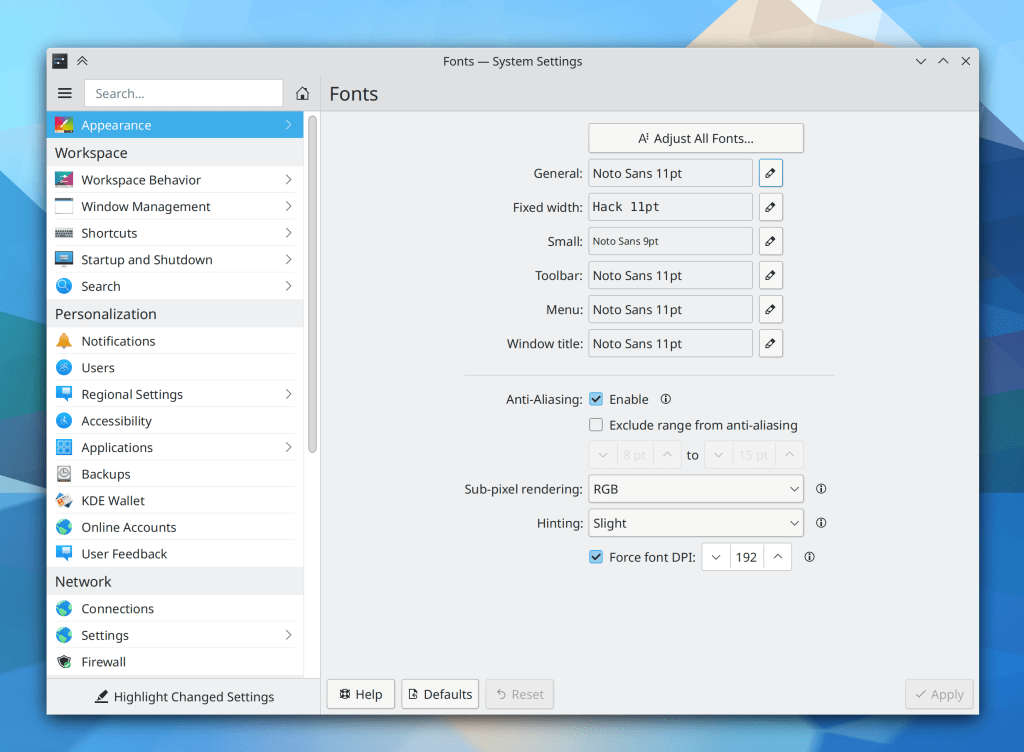
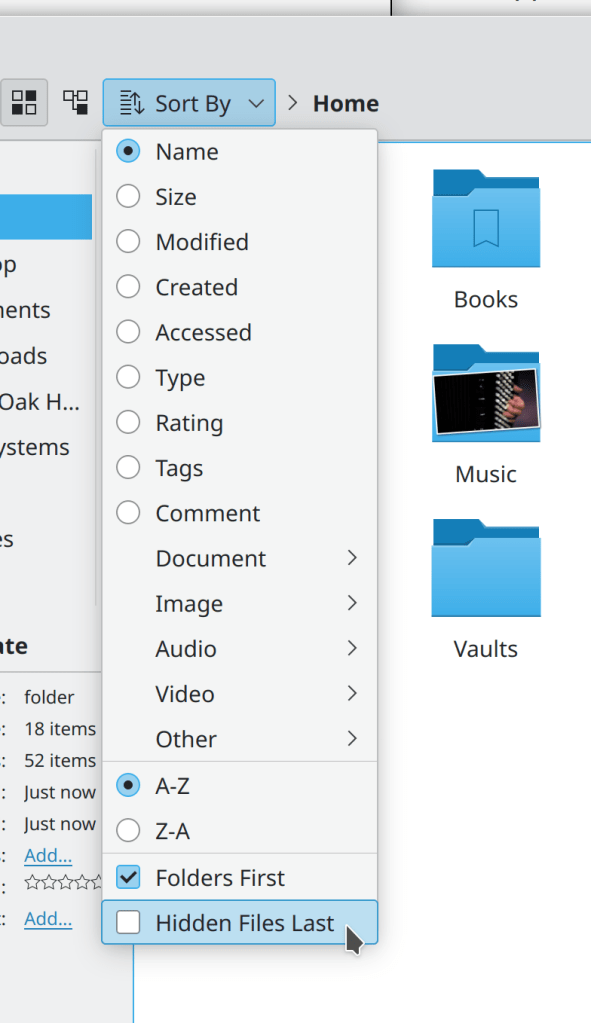
When Dolphin is showing hidden files, they are now all placed after all the visible ones, rather than before them (Gastón Haro, Dolphin 21.08)

Using Kate’s feature to show the differences between the open version of a file and the version of it that was just updated on disk no longer populates lists of recent files with temporary “.diff” files (Méven Car, Kate 21.08)

The “Translucency” desktop effect is now disabled by default, so windows no longer become slightly translucent when moved or resized (me: Nate Graham and Vlad Zahorodnii, Plasma 5.23)

The System Tray Bluetooth applet’s “Add New Device” button now lives in the header, becoming consistent with other System Tray applets (me: Nate Graham, Plasma 5.22):

It’s now possible to have the icons in your Icons-Only Task Manager automatically sorted by various criteria (alphabetically, by desktop, etc) exactly as you can do for the traditional Task Manager (Marko Gobin, Plasma 5.22)

…And everything else

Keep in mind that this blog only covers the tip of the iceberg! Tons of KDE apps whose development I don’t have time to follow aren’t represented here, and I also don’t mention backend refactoring, improved test coverage, and other changes that are generally not user-facing. If you’re hungry for more, check out https://planet.kde.org/, where you can find blog posts by other KDE contributors detailing the work they’re doing.

How You Can Help

Have a look at https://community.kde.org/Get_Involved to discover ways to be part of a project that really matters. Each contributor makes a huge difference in KDE; you are not a number or a cog in a machine! You don’t have to already be a programmer, either. I wasn’t when I got started. Try it, you’ll like it! We don’t bite!

Finally, consider making a tax-deductible donation to the KDE e.V. foundation.

This week in KDE: UI improvements abound

Plasma 5.22 is just around the corner, and we put the finishing touches on some UI improvements to it, as well as our apps! Check it out:

New Features

You can now limit the update interval of System Monitor graphs (Arjen Hiemstra, Plasma 5.22)

Bugfixes & Performance Improvements

Fixed an obscure way that Konsole could crash when opening its Settings window (Carlos Alves, Konsole 21.04.1)

Gwenview no longer gets confused and sad when asked to open a document whose mimetype does not match its filename extension (Arjen Hiemstra, Gwenview 21.08)

Fixed a way that Plasma could crash immediately upon login when using certain System Tray items, or when switching keyboard layouts (Konrad Materka, Plasma 5.22)

Clicking the “Sleep” button when using Systemd startup mode with an older Systemd version no longer turns the computer off instead of putting it to sleep (Yaroslav Sidlovsky, Plasma 5.22)

Fixed an odd bug that could occasionally cause KRunner to not activate or deactivate when pressing its global shortcut (Fabian Vogt, Plasma 5.22)

When you tell the Clipboard applet to clear history and it asks you if you really want to proceed, clicking “No” after checking the “don’t ask again” checkbox no longer breaks the “clear History” functionality forever; it will now ask you again the next time! (Bharadwaj Raju, Plasma 5.22)

Used swap space is now visible in the new Plasma System Monitor app’s Memory graph (David Redondo, Plasma 5.22)

Opening a .flatpakref file in Discover for an already-installed app no longer presents an odd error (Aleix Pol Gonzalez, Plasma 5.22)

Discover no longer shows an “Uninstall” button on update pages where it doesn’t make sense (Aleix Pol Gonzalez, Plasma 5.22)

The button to configure your screen reader in System Settings’ Accessibility page now actually uh works (how embarrassing) (Carl Schwan, Plasma 5.22)

The kdeinit5 process no longer crashes either randomly or constantly when trying to generate thumbnails during semi-common operations like taking screenshots, copying files, etc (Fabian Vogt, Frameworks 5.82)

User Interface Improvements

Ark now shows a “welcome screen” of sorts if you open it without an archive, and also opens to a saner window size (Jiří Wolker and me: Nate Graham, Ark 21.08):

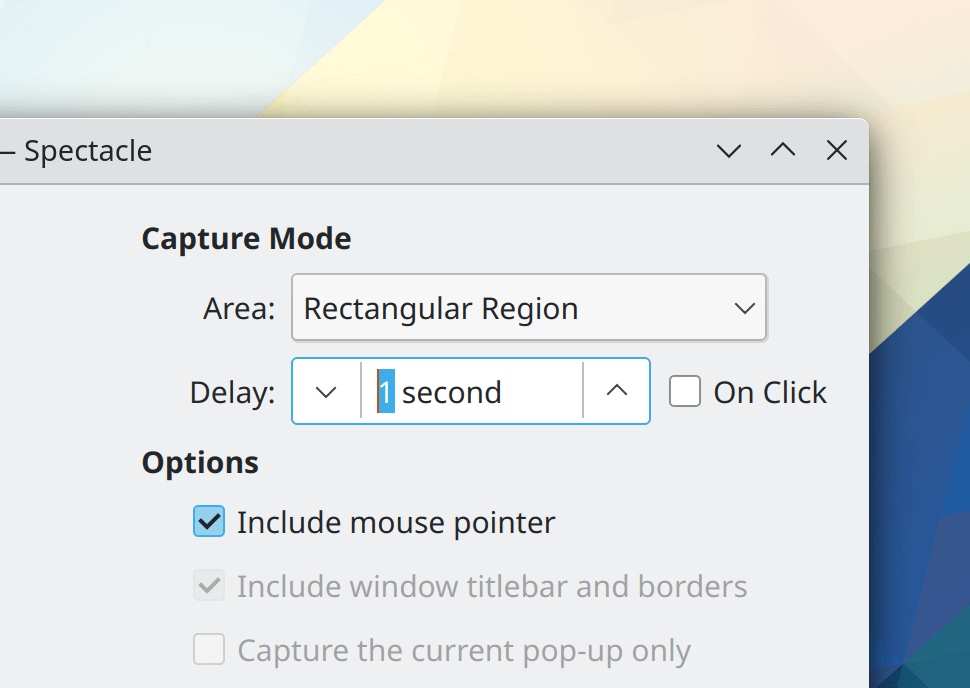
Spectacle’s options for what to copy after taking a screenshot (if anything) have been substantially clarified in the settings window, and the setting to copy the file path to the clipboard now works even if autosave is turned off (it saves the file to a temp path) (Srevin Saju, Spectacle 21.08):

Gwenview’s sidebar has received a visual refresh to be more in line with current KDE user interface guidelines (Noah Davis, Gwenview 21.08):

Dolphin’s tags menu in the search view now has a “Clear selection” button so those of you who make extensive use of tags can more easily start a new tag-based search (Ismael Asensio, Dolphin 21.08)

The Notifications applet’s “Clear all notifications” action has been moved out of the hamburger menu to make it more accessible, and the applet’s “Configure” button now opens the System Settings Notifications page rather than a mostly empty applet configuration window (me: Nate Graham, Plasma 5.22):

The System Tray Notifications pop-up now closes when the last notification is cleared by using the manual close buttons in the view instead of the “Clear all Notifications” button (Eugene Popov, Plasma 5.22)

Discover’s Sources menu is now accessible and usable with the keyboard (Carl Schwan, Plasma 5.22)

System Settings’ Audio Volume page no longer shows unused and inapplicable settings when the system is using the new PipeWire-PulseAudio compatibility system (Nicolas Fella, Plasma 5.22)

The Task Manager’s “Highlight windows” feature now only triggers when you hover the cursor over a window thumbnail, which makes it useful and not annoying, so we turned it on by default (Bharadwaj Raju, Plasma 5.22)

The System Tray Vaults applet’s “Create new Vault” button now lives in the header, to match the design of other System Tray applets (me: Nate Graham, Plasma 5.22):

The System Tray Battery & Brightness System applet’s header has received an overhaul: the “Configure” button now opens the relevant System Settings page rather than a mostly-empty applet config window, and that window’s only option has been made into a checkable item in the Hamburger menu (me: Nate Graham, Plasma 5.22):

And yes, we know that the “Configure Energy Saving…” item in the hamburger menu is redundant. This is a known bug that will hopefully be fixed soon.

System Settings’ own settings window is no longer too small (me: Nate Graham, Plasma 5.22)

The corner radius of KWin-drawn titlebars now respects the scale factor on X11 (Paul McAuley, Plasma 5.22)

There’s no longer a little empty space on the right edge of a non-maximized panel (Jan Blackquill, Plasma 5.22)

Dolphin’s breadcrumbs bar now displays more user-friendly text for search results (Kai Uwe Broulik, Frameworks 5.83)

The System Settings Browser Identification page has been removed because it was almost completely pointless in this day and age (Nicolas Fella, Frameworks 5.83)

…And everything else

Keep in mind that this blog only covers the tip of the iceberg! Tons of KDE apps whose development I don’t have time to follow aren’t represented here, and I also don’t mention backend refactoring, improved test coverage, and other changes that are generally not user-facing. If you’re hungry for more, check out https://planet.kde.org/, where you can find blog posts by other KDE contributors detailing the work they’re doing.

How You Can Help

Have a look at https://community.kde.org/Get_Involved to discover ways to be part of a project that really matters. Each contributor makes a huge difference in KDE; you are not a number or a cog in a machine! You don’t have to already be a programmer, either. I wasn’t when I got started. Try it, you’ll like it! We don’t bite!

Finally, consider making a tax-deductible donation to the KDE e.V. foundation.

This week in KDE: Support for GPU hot-plug and FreeSync, and so much more

This was another really really big week in KDE!

First we got support for hot-plugging GPUs and FreeSync/Adaptive Sync/variable screen refresh rates on Wayland in Plasma 5.22, thanks to Xaver Hugl!

Next, thanks to Aleix Pol, Gonzalez, we got a new Wayland protocol for tracking app activation and hand-off which will eventually allow KDE apps to display visual feedback when launching, and bring forward existing windows of already-open apps when asked to display new content!

And then there’s the rest of this cool stuff! See if you can count how many of your longstanding annoyances have been addressed below:

Other New Features

Konsole now lets you save your current layout to a file, and load saved layouts at will (Lucas Biaggi, Konsole 21.08)

Spectacle now lets you copy the image’s path to the clipboard right there from the main UI, and performs whatever action is necessary to make that possible (e.g. saving the image if you ask for the path) (Srevin Saju, Spectacle 21.08):

KHelpCenter now has a “Full Screen” mode (Yuri Chornoivan, KHelpCenter 5.7.6.21080)

In the Plasma Wayland session, you can now choose which virtual keyboard to use, or disable it entirely if that’s your thing (Aleix Pol Gonzalez, Plasma 5.22)

The Digital Clock’s pop-up now displays an “Add…” button that opens Kontact so you can add events, and also shows days with any events using pretty dots rather than ugly triangles (Carl Schwan, Plasma 5.22 and Frameworks 5.82):

It’s now possible to configure normal-priority notifications to appear in your full-screen windows, so for example you can (optionally, of course) still see them while watching fullscreen video or reading documents in Okular’s fullscreen view (Oleksandr Popel, Plasma 5.22)

The new Plasma System Monitor app now remembers the last page you were viewing by default, but if you want, you can instead set it to open a specific page every time (David Redondo, Plasma 5.22)

Bugfixes & Performance Improvements

Improved the visibility of selected text in Konsole (Jan Blackquill, Konsole 21.04.1)

Konsole no longer crashes when you enter an absurdly long string into it (like 6000 characters long) and then immediately maximize the window (Carlos Alves, Konsole 21.04.1)

After using the Trim to Selection tool in Okular, the Browse tool is once again automatically activated (Gerd Wachsmuth, Okular 21.04.1)

Video thumbnails now work again when using distro packages with ffmpeg 3 but not 4 (Xuetian Weng, KDE Gear 21.04.1)

Plasma’s Folder View widget (which handles desktop icons) now calculates icon positions correctly from the top-left corner of the top-left-most screen, which fixes various bugs such as icons on the last column moving over to the left-most column after a reboot or after creating new icons, or icons on non-left-most screens being mis-positioned out of the view and making the whole desktop scrollable (Oleg Solovyov, Plasma 5.21.5)

Renaming items on the desktop using the keyboard shortcut (F2 by default) now works in the case when the icon was selected using its little plus sign button that appear when you hover the mouse over it while using the default single-click mode (Tobias Fella, Plasma 5.21.5)

The Plasma Wayland session no longer hangs at login when booting in basic/fallback graphics mode (Aleix Pol Gonzalez, Plasma 5.22)

In the Plasma Wayland session, KWin no longer crashes when you apply firmware updates (using Discover or just with the fwupdmgr command-line tool) with a touchscreen laptop or a graphics tablet connected (David Edmundson, Plasma 5.22)

Konsole no longer hangs when using the top/bottom split feature and the Oxygen application style (Vlad Zahorodnii, Plasma 5.22)

Plasma can no longer freeze by viewing year 0 in the calendar (Alois Wohlschlager, Plasma 5.22)

Login scripts now run as expected when using systemd startup mode (Henri Chain, Plasma 5.22)

Opening an audio or video file from Dolphin no longer causes the “now playing audio” indicator to appear on Dolphin as well as the app that’s actually playing it (Méven Car, Plasma 5.22)

Changing your system icon theme or using an AppImage no longer sometimes causes all System Tray icons to temporarily become invisible (Konrad Materka, Plasma 5.22)

Removed recently-accidentally-added default global shortcuts for the “Reboot/Halt/Log Out Without Confirmation” actions, because actions like these are too dangerous to have default global shortcuts (me: Nate Graham, Plasma 5.22)

KWin now has better support for the Panfrost Mali driver (Tomasz Gajc, Plasma 5.22)

System monitor widgets and the new app by the same name no longer indicate that you have no CPUs under certain circumstances (lol) (Arjen Hiemstra, Plasma 5.22)

It’s no longer possible to try to remove the entry for your home folder in the System Settings File Indexing page, because this isn’t a valid action and doing so doesn’t work (me: Nate Graham, Plasma 5.22)

In the Plasma Wayland session, sub-menus of context menus for Plasma applets no longer bizarrely appear as separate windows with their own titlebars and everything (lol) (David Redondo, Frameworks 5.82)

The “Get new Plugins” window no longer displays spurious error messages when you cancel the installation of a plugin (Alexander Lohnau, Frameworks 5.82)

Fixed one of the ways that Kirigami-based apps could crash when displaying icons (Aleix Pol Gonzalez, Frameworks 5.82)

User Interface Improvements

Elisa’s Now Playing page has undergone a UI overhaul which sees the introduction of a two-column layout in widescreen mode, collapsing to a multi-view one-column layout in narrow mode. You can also turn off the blurred album art background on that page if you don’t like it (Tranter Madi, Elisa 21.08):

Elisa’s Shuffle and Repeat buttons are now a bit more comprehensible by showing their checked states when active and making the tooltip clear that it is describing the current state, not the action that will be performed when you click on the button (Tranter Madi, Elisa 21.08)

Dolphin’s Information Panel now updates in real-time as the file for which it is displaying information gets updated by any other apps and when the size changes for a folder for which it is displaying information (Méven Car, Dolphin 21.08)

The Buttons in Gwenview’s status bar now have correct sizing and outside margins (Noah Davis, Gwenview 21.08):

The “Go up” button in Filelight is now disabled when you’re viewing the root level of your filesystem (Burak Hancerli, Filelight 21.08)

The Kickoff application launcher menu now implements a Triangle Menu Filter, which means that you can move the cursor diagonally over the categories list to reach the items in the view without accidentally switching categories! So we have also removed the irritating hover delay when moving the cursor vertically to switch categories! (David Edmundson, Plasma 5.22)

KRunner now shows multi-line text for long dictionary definitions! (Alexander Lohnau, Plasma 5.22):

KRunner no longer returns duplicate or pseudo-duplicate search results, such as “Launch Firefox” and also “launch firefox” (the terminal command) (Alexander Lohnau, Plasma 5.22)

What counts as a default setting in System settings now takes into account the settings of the active Global theme; for example when using the Breeze Dark Global Theme, the Breeze Dark color scheme is considered the default color scheme (Henri Chain, Plasma 5.22)

The Battery & Brightness applet’s user interface for communicating the ability to temporarily inhibit sleep and screen locking has hopefully been made much more comprehensible, and also takes up less space (me: Nate Graham, Plasma 5.22):

When using a multi-screen setup, apps and windows are now opened by default on the screen containing the cursor (Xaver Hugl, Plasma 5.22)

You can now double-click on the grid items in System Settings to quickly apply the settings for the double-clicked-upon item without having to reach down and hit the Apply button (Wael Chlouftou and me: Nate Graham, Plasma 5.22)

Discover’s application page now has an improved layout including more standard-style cards for reviews (Carl Schwan, Plasma 5.22):

GTK apps using the libhandy library–particularly for its tab bars–now look more native when run on Plasma (Jacob Kauffmann, Plasma 5.22):

The now-visible-by-default Panel in the Present Windows effect is now darkened along with the background to communicate that it’s non-interactive (Felipe Kinoshita, Plasma 5.22)

The Audio Volume applet’s tooltip now shows the user-friendly name of the current audio output rather than its technical name (Nicolas Fella, Plasma 5.22)

GTK apps now use Breeze-style arrows in menus and various other places (me: Nate Graham, Plasma 5.22):

Middle-clicking System Monitor applets now opens the new Plasma System Monitor app (David Redondo, Plasma 5.22)

Discover’s “Updates” jump list action has been clarified so that it no longer seems identical to other similar actions in search results (me: Nate Graham, Plasma 5.22):

Various keyboard shortcuts can now be used to manipulate the volume of the currently focused stream in the Audio Volume applet: the numbers 0-9 to change the volume, M to mute, Enter/Return to make it the default one, and Menu Key to open the menu (Chris Holland, Plasma 5.22)

The Clipboard applet no longer features a “Quit” action, because you can’t actually quit it (Eugene Popov, Plasma 5.22)

Scrolling over the Battery & Brightness applet to change the brightness now works more consistently and predictably with both a high-resolution touchpad as well as a traditional mouse wheel (Bernhard Sulzer, Plasma 5.22)

Shadows behind the clock text in the lock and login screens has been slightly lightened when displayed above light backgrounds so that it doesn’t appear so sharp and harsh (me: Nate Graham, Plasma 5.22)

A variety of QWidgets-based KDE apps will no longer have absurdly small 640×480 pixel default window sizes (me: Nate Graham, Frameworks 5.82)

Web shortcuts now display their icons by default (Ismael Asensio, Frameworks 5.82)

…And everything else

Keep in mind that this blog only covers the tip of the iceberg (though this week it was perhaps a bigger tip than usual)! Tons of KDE apps whose development I don’t have time to follow aren’t represented here, and I also don’t mention backend refactoring, improved test coverage, and other changes that are generally not user-facing. If you’re hungry for more, check out https://planet.kde.org/, where you can find blog posts by other KDE contributors detailing the work they’re doing.

How You Can Help

Have a look at https://community.kde.org/Get_Involved to discover ways to be part of a project that really matters. Each contributor makes a huge difference in KDE; you are not a number or a cog in a machine! You don’t have to already be a programmer, either. I wasn’t when I got started. Try it, you’ll like it! We don’t bite!

Finally, consider making a tax-deductible donation to the KDE e.V. foundation.

Our stuff is really pretty good

Today is my birthday, and I’ve reached the phase of life where I don’t need or want presents anymore–just a bit of time spent with some of the people who are important to me. And maybe some Chinese food. 🙂

But today I got a nice present anyway: a glowing review of Plasma from Igor Ljubuncic of Dedoimedo. Go check it out! Igor is a tough reviewer, and always manages to find things to complain about whenever he reviews software, including ours. I’m very happy that he thinks our offerings are so far ahead of everyone else’s.

So let’s keep it that way! But who made this happen? YOU! You, my faithful readers! You, KDE developers and translators and promo people and other contributors! You, KDE distro packagers! You, bug reporters! You, users who spread the word and convert your friends and classmates and colleagues and spouses and parents. All of us are responsible for this success, because we care about the future of computing being high-quality and user-friendly. So happy birthday to everyone! Let’s keep on making the world a better place.

This week in KDE: Overflowing with UI and accessibility improvements

This week we have the usual assortments of bugfixes and little new features here and there that you’ve come to expect, but the real focus was on user interface and accessibility improvements–and there is a truly massive amount of them! You would be forgiven for skipping straight to the “UI Improvements” section. 🙂

New Features

When renaming files in Dolphin, you can now quickly start renaming the next or previous file as well by hitting the Tab/Shift+Tab key, or even the up or down arrow keys while in Details view (Michal Sciubidlo and Méven Car, Dolphin 21.08)

The System Settings File Search page now lets you check on the status of indexing and temporarily pause or resume it, or monitor its current status. And if you disable indexing, it now offers you the opportunity to delete the index database on disk (me: Nate Graham and David Edmundson, Plasma 5.22):

The Plasma Browser Integration feature now notifies you when a download hasn’t started yet because the browser is waiting for you to click the “Yes I accept the risk of downloaded files blah blah blah” button (Kai Uwe Broulik, Plasma 5.22):

Bugfixes & Performance Improvements

Changing the icon size of Dolphin’s Places panel sidebar and then reverting the change now results in the list items having the correct spacing again (Harald Sitter, Dolphin 21.04.1)

In the Plasma Wayland session, Plasma no longer crashes when dragging a file over the panel (Alois Wohlschlager, Plasma 5.21.5)

You know that annoying bug with the volume percentage being sometimes adjusted by too much or too little that we thought we had fixed? It was not in fact actually fixed, but now we re-did it to be actually fixed this time, honest! (Chris Holland–so you know it was done right, Plasma 5.21.5)

You know that other annoying and recurring bug where the applet configuration menu in panel edit mode with a top or left panel sometimes disappears right when you move the mouse over it? That’s finally fixed for real too! (Niccolò Venerandi, Plasma 5.21.5)

The Cover Switch and Flip Switch task switchers now work properly again (Vlad Zahorodnii, Plasma 5.21.5)

The new Plasma System Monitor app no longer sometimes loses the names of processes after modifying columns (David Redondo, Plasma 5.21.5)

Comboboxes in GTK apps now use the correct dropdown arrow icon (Jan Blackquill, Plasma 5.21.5)

The System Tray’s blue indicator line now appears in the right place after performing an action that causes the current’s visible applet to become hidden (Konrad Materka, Plasma 5.22)

Discover’s “get addons” feature for Flatpak apps no longer shows an empty dialog before taking you to the real content (Aleix Pol Gonzalez, Plasma 5.22)

KRunner-powered calculations now perform exponentiation operations for numbers with real superscripted exponents; i.e. entering “8²” will produce the correct result of “64” (Alexander Lohnau, Plasma 5.22)

Excluding certain folders from the file indexer now works properly when for some reason the $HOME environment variable ends with a slash (Oded Arbel, Frameworks 5.82)

Fixed one way that the file indexer could crash when trying to index a moved or renamed folder (Oded Arbel, Frameworks 5.82)

Clicking on the darkened area behind a pop-up sheet in Kirigami-using KDE software once again closes the sheet (David Edmundson, Frameworks 5.82)

Checkboxes in QtQuick-based desktop apps now elide long text and show underlines for alt-accelerators (me: Nate Graham, Frameworks 5.82)

User Interface Improvements

In Elisa’s Now Playing page, the status bar on the bottom now correctly shows the “Show In Folder” action when there’s space, sticks it in an overflow menu when there’s not, and elides the file path from the left side when space gets really limited (Tranter Madi, Elisa 21.04.1):

Okular now lets you disable seeing those big notification messages about embedded files, forms, and signatures (Okular 21.08)

The System Settings Shortcuts page is now accessible and keyboard-navigable (Carl Schwan, Plasma 5.22)

The “Most Used” category icons in the System Settings Quick Settings page are now accessible and keyboard-navigable (me: Nate Graham, Plasma 5.22)

The Plasma Calendar applet and the popup for the Digital Clock applet which includes it have been completely re-done to look vastly more modern and consistent (Carl Schwan, Plasma 5.22 and Frameworks 5.82):

Next we’re going to replace those little spiky triangles with dots

Task Manager window thumbnails now display a nice little drop shadow behind themselves (me: Nate Graham, Plasma 5.22):

Re-did the legends for system monitor graphs, which particularly improves the presentation for CPU graphs when there are a lot of cores (Arjen Hiemstra, Plasma 5.22):

System Settings’ Virtual Desktops and Desktop Effects pages now support the “Highlight changed settings” feature (Benjamin Port, Plasma 5.22)

Klipper’s history pop-up (shown with Meta+V by default as of Plasma 5.22) now uses more user-friendly text (Felipe Kinoshita, Plasma 5.22)

Your Plasma Panels no longer totally disappear while the Present Windows effect is active, and app icons are now larger and appear in the center of the window (Felipe Kinoshita, Plasma 5.22):

The Show Desktop effect now just hides all your windows while it’s in use, rather than keeping little half-visible phantoms of them visible in the corners (me: Nate Graham, Plasma 5.22):

When you trash a screenshot from the notification in the history view (not a pop-up on screen, but from its entry inside the System Tray applet) it now disappears afterwards (Kai Uwe Broulik, Plasma 5.22)

The new Plasma System Monitor app now defaults to sorting “Applications” views by memory usage, rather than by name (Felipe Kinoshita, Plasma 5.22)

The new Plasma System Monitor app now has a “Report Bug…” item in its hamburger menu (Marco Martin, Plasma 5.22):

The Battery applet no longer shows a silly little empty overlay when using the “Show Percentage” option but with no batteries. This could happen I suppose if you have one of those rare laptops that still has hot-swappable batteries (me: Nate Graham, Plasma 5.22)

The Battery applet now opens the Energy Saving page in System Settings, not in a funny little standalone window (Eugene Popov, Plasma 5.22)

Grid items in System Settings pages are now fully accessible and keyboard-navigable (Jan Blackquill, Frameworks 5.82)

Grid items in System Settings pages now display their inline actions for the currently-selected item as well as the hovered one, improving usability on touch and discoverability for everyone (me: Nate Graham, Frameworks 5.82):

When the file dialog ever has to display a progress bar while it’s loading the view, the progress bar is now aligned properly (Ahmad Samir, Frameworks 5.82)

The “Open or execute” dialog is now modal, so it’s no longer possible to accidentally show it multiple times and launch multiple instances of an application (Ahmad Samir, Frameworks 5.82)

Icons on your Plasma panel now resize more gradually when changing the panel thickness (Niccolò Venerandi, Frameworks 5.82)

Web Presence

Did you ever want to know exactly how Plasma Panels work? Niccolò Venerandi would love to show you in exhaustive detail:

One more thing

Technically this is not in KDE, but it’s relevant to us nonetheless: the SDDM login manager can now run the greeter without needing root privileges! The work was done by Pier Luigi Fiorini and will land in SDDM 0.20.

…And everything else

Keep in mind that this blog only covers the tip of the iceberg! Tons of KDE apps whose development I don’t have time to follow aren’t represented here, and I also don’t mention backend refactoring, improved test coverage, and other changes that are generally not user-facing. If you’re hungry for more, check out https://planet.kde.org/, where you can find blog posts by other KDE contributors detailing the work they’re doing.

How You Can Help

Have a look at https://community.kde.org/Get_Involved to discover ways to be part of a project that really matters. Each contributor makes a huge difference in KDE; you are not a number or a cog in a machine! You don’t have to already be a programmer, either. I wasn’t when I got started. Try it, you’ll like it! We don’t bite!

Finally, consider making a tax-deductible donation to the KDE e.V. foundation.
This week in KDE: Offline updates are now optional

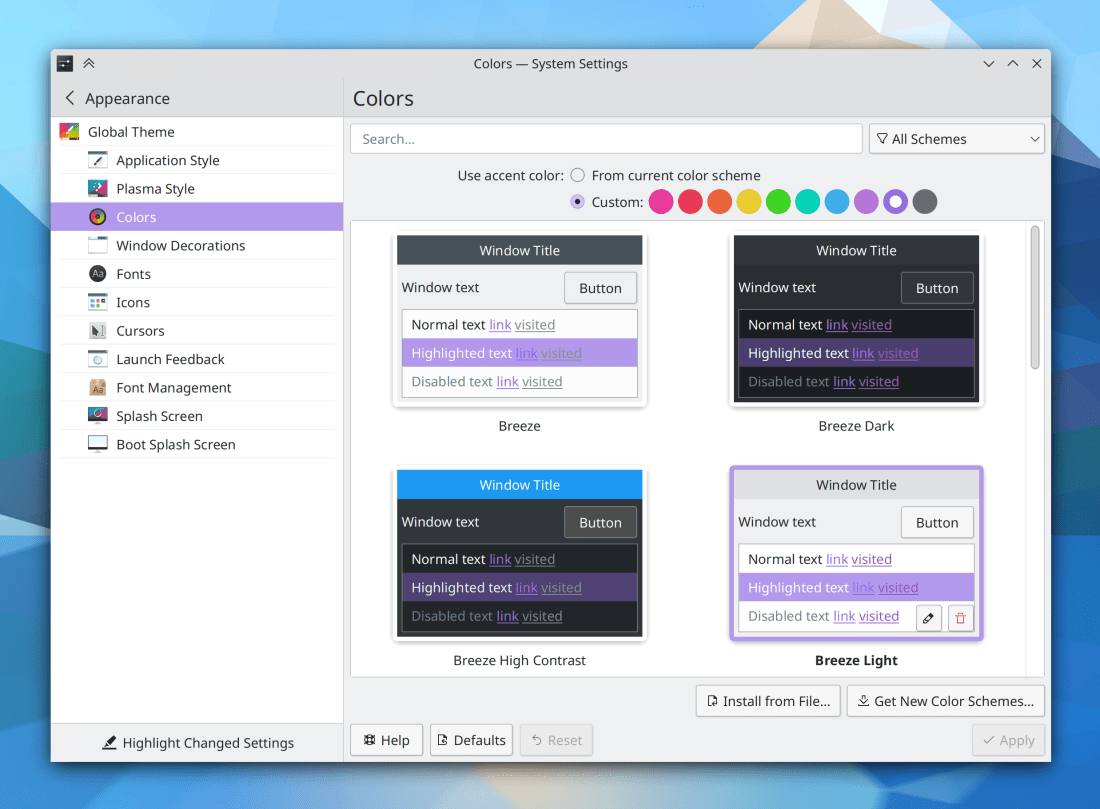
I have good news for those of you who are upset by KDE Neon moving to offline updates by default: we’ve made a GUI setting to turn it off (there was already a CLI setting). I get that the nerdy tech crowd is not super thrilled by this new more Windows 10-style update mode. But though you might find it annoying, it really does improve your system’s stability. I can point to literally hundreds of bug reports about problems caused entirely by not rebooting the computer after installing updates. However, in KDE we want you to be in control, so starting in Plasma 5.22, you’ll be able to enable or disable offline updates to suit your preference. This work was done by Aleix Pol Gonzalez:

And yeah, all these update-related options live in System Settings, not in Discover itself

Other New Features

In the Plasma Wayland session, the Global Menu widget now includes a Search field that you can use to quickly locate menu items! (Jan Blackquill, Plasma 5.22)

Discover has gained the ability to update distros using rpm-ostree, such as Fedora Silverblue and Fedora Kinoite (Mariam Fahmy, Plasma 5.22)

In the Plasma Wayland session, screen-casting will now enter “Do Not Disturb” mode by default (though this can be overridden, if desired) (Kai Uwe Broulik, Plasma 5.22)

You can now set screens’ overscan values in the Plasma Wayland session (Xaver Hugl, Plasma 5.22)

Bugfixes & Performance Improvements

Hugely improved Gwenview’s speed, responsiveness, and memory usage when loading and navigating large grid views, particularly for files located on network locations (Arjen Hiemstra, Gwenview 21.08)

Entering your password in the Networks applet no longer causes the networks list to re-arrange itself while you’re typing and sometimes send your password to the wrong network! This has been a problem for quite a while, and we tried various targeted fixes that never fully worked; this time we went for the nuclear option that should finally solve it once and for all! (Jan Grulich, Plasma 5.21.5)

The new Plasma System Monitor app no longer crashes when you select a new display style for any of the sensors (Arjen Hiemstra, Plasma 5.21.5)

Sending files to Bluetooth devices from Dolphin now works again (Egor Ignatov, Plasma 5.21.5)

Discover once again displays firmware updates for eligible devices (Aleix Pol Gonzalez, Plasma 5.21.5)

It is now possible to specify a usergroup for OpenConnect VPNs (Aaron Barany, Plasma 5.21.5)

Long names in System Settings’ Users page no longer overflow (Jan Blackquill, Plasma 5.21.5)

Fixed one of the ways that KWin can crash when using a multi-GPU system (Xaver Hugl, Plasma 5.22)

In the Plasma Wayland session, KWin no longer sometimes crashes when showing Task Manager thumbnails or ending a screen recording/streaming session (Alois Wohlschlager, Plasma 5.22)

Accented and dead keys now work in the Plasma Wayland session when the virtual keyboard is available (Aleix Pol Gonzalez, Plasma 5.22 with Qt 5.15.3 plus KDE’s backported patches)

The Present Windows effect now works in the Plasma Wayland session when activated from grouped Task Manager entries (David Redondo, Plasma 5.22)

The new S.M.A.R.T. monitoring system no longer erroneously warns you that VirtualBox disks are broken when they’re not, or tracks the status for devices without S.M.A.R.T. support at all (Harald Sitter, Plasma 5.22)

When using the new Systemd startup feature, processes that crash at logout or login can no longer either block re-login, or fail to get started at login in circumstances under which they would otherwise launch normally (David Edmundson, Plasma 5.22)

System Settings no longer sometimes crashes when navigating from one QtQuick-based page to another (Jan Blackquill, Frameworks 5.82)

List Items throughout QtQuick-based KDE software no longer exhibit excessive left padding for their icons (me: Nate Graham, Frameworks 5.82)

User Interface Improvements

Digital signatures in Okular are no longer drawn with scary red text (Albert Astals Cid, Okular 21.04)

When dragging a document in Okular using the mouse, the cursor now wraps around horizontally when you reach the edge of the screen, just like it already does vertically (David Hurka, Okular 21.08)

On systems with slow PackageKit implementations (such as openSUSE-based distros), Discover now presents the initial view a bit more accurately while metadata is still being loaded (Aleix Pol Gonzalez, Plasma 5.22)

In the new Plasma System Monitor app, any page with a search field now focuses that search field by default when the page is loaded, so you can always start typing right away to search (David Redondo, Plasma 5.22)

The Bluetooth applet’s section separator now visually matches that of the Networks applet (me: Nate Graham, Plasma 5.22):

Web Presence

Pablo Marcos re-did Okular’s website to be nice and modern, with the help of Carl Schwan:

…And everything else

Keep in mind that this blog only covers the tip of the iceberg! Tons of KDE apps whose development I don’t have time to follow aren’t represented here, and I also don’t mention backend refactoring, improved test coverage, and other changes that are generally not user-facing. If you’re hungry for more, check out https://planet.kde.org/, where you can find blog posts by other KDE contributors detailing the work they’re doing.

How You Can Help

Have a look at https://community.kde.org/Get_Involved to discover ways to be part of a project that really matters. Each contributor makes a huge difference in KDE; you are not a number or a cog in a machine! You don’t have to already be a programmer, either. I wasn’t when I got started. Try it, you’ll like it! We don’t bite!

Finally, consider making a tax-deductible donation to the KDE e.V. foundation.

This week in KDE: Activities on Wayland

This week the Wayland train continued barreling on, full speed ahead! We picked up a bunch of nice fixes and a big feature:

New Features

The “Activities” feature now mostly works on Wayland! There are a few remaining things to implement to make it 100% comparable to the X11 version, but that should get done in time for the next Major Plasma release (Kevin Ottens, Plasma 5.22)

Sticky Note widgets now have an option to change the font size (Shantanu Tushar, Plasma 5.22):

Bugfixes & Performance Improvements

Zooming in and out in Okular now works correctly when using the “Trim Margins” feature (Gerd Wachsmuth, Okular 21.04)

Media9 PDF movie annotations can once again be played in Okular (Albert Astals Cid, Okular 21.04)

When using Okular’s “Invert Luma/Lightness” setting, the loading page now retains its correct color (David Hurka, Okular 21.04)

Ark can now un-archive zip files with Windows-style backslashes used as path separators (João Silva, Ark 21.08)

Fixed a bug in the Breeze application style that could manifest as a big ugly black square appearing in KMail (Fabian Vogt, Plasma 5.18.8)

Fixed one way that Plasma could crash right after login (John Zimmermann, Plasma 5.21.4)

The Plasma Wayland session will no longer crash if you plug in an external screen while in a non-GUI session (e.g. a virtual terminal) (Jan Blackquill, Plasma 5.21.4)

The Bluetooth applet’s tooltip no longer displays the wrong name of the currently connected device. I originally fixed this 9 months ago in Plasma 5.19.1 but somehow the fix was never merged into Plasma 5.20, so it got broken again. That has now been corrected (me: Nate Graham with help from James John, Plasma 5.21.4)

Ultra-wide screens with a 21:9 aspect ratio are now displayed as “21:9” in System Settings’ Display Configuration page, rather than “64:27” (lol) (Felipe Kinoshita, Plasma 5.21.4)

Fixed one way that KWin could crash with certain low-power embedded GPUs (Vlad Zahorodnii, Plasma 5.21.5)

Maximized GTK app windows are no longer positioned too high in the Plasma Wayland session (Vlad Zahorodnii, Plasma 5.21.5)

Discover’s ability to show you an app’s dependencies now works again (Aleix Pol Gonzalez, Plasma 5.21.5)

Disconnecting a screen in the Plasma Wayland session no longer causes all Qt apps to crash (Vlad Zahorodnii, Plasma 5.22)

Global shortcuts are now working even on non-US keyboard layouts (Andrey Butirsky, Plasma 5.22 in conjunction with a Qt version that has this pending patch integrated)

Plasma no longer lags or hangs when displaying a massive number of tooltips for grouped Task Manager tasks (Aleksei Nikiforov, Plasma 5.22)

The kglobalaccel5 daemon can no longer block re-login by crashing on the previous log-out and then getting stuck (David Edmundson, Plasma 5.22 or Frameworks 5.82; whichever one you get first)

When using a multi-screen setup, the lock screen no longer only displays typed text on the text field of the left-most screen, even if you clicked on the text field on a different screen (Aleix Pol Gonzalez, Plasma 5.22)

The Task Manager’s “Highlight windows when hovering over tasks” feature now works in the Plasma Wayland session (David Redondo, Plasma 5.22)

Kate and other KTextEditor-based apps no longer crash if you delete an open file on disk and choose the “Close file, discarding contents” option in the warning message that appears in the app (Christoph Cullmann, Frameworks 5.82)

Fixed a rare case where Kate and other KTextEditor-based apps could crash when dragging text (Waqar Ahmed, Frameworks 5.82)

Context Menus for text fields inside Kirigami overlay sheets are no longer displayed below the sheet content (Noah Davis, Frameworks 5.82)

In Kate and other KTextEditor-based apps, the code completion pop-up no longer sometimes take up the whole screen width (Waqar Ahmed, Frameworks 5.82)

Text in Plasma tab buttons (such as in the new Kickoff menu) now gets elided when there’s not enough space, rather than overflowing (David Edmundson, Frameworks 5.82)

User Interface Improvements

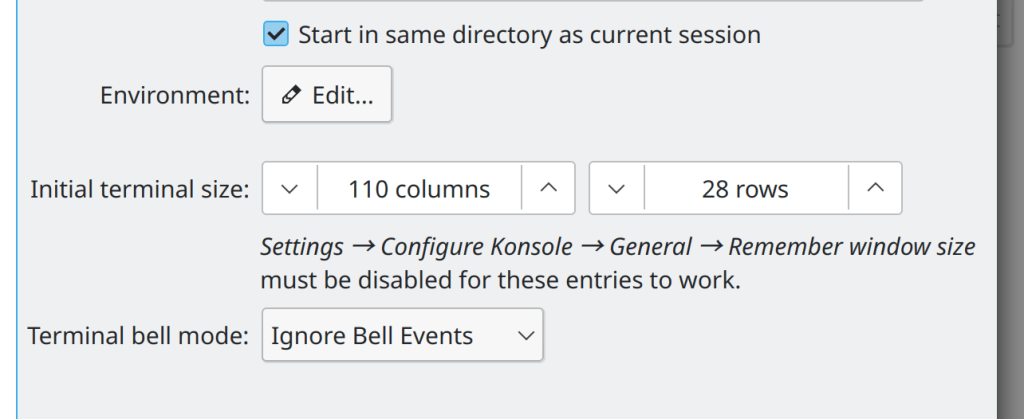
Konsole’s “Edit Profile” window now displays errors inline, rather than using an ugly modal dialog window (Ahmad Samir, Konsole 21.04):

Okular’s “Continuous” mode is now considered to be a document-specific setting (like the zoom settings are), rather than a global setting (Mahmoud Khalil, Okular 21.08)

Items in the System Settings KWin Scripts now use the “pending deletion” pattern used in many other pages, whereby deleting an item only marks as it as in a “pending deletion” state and it only actually gets deleted when you click the “Apply” button (Alexander Lohnau, Plasma 5.22)

System Tray applets now receive keyboard focus when opened, so they can be interacted with using the keyboard (Eugene Popov, Plasma 5.22)

Hover buttons in the Clipboard System Tray applet’s list items are now top-aligned for tall ones, so that the trash button doesn’t shift around according to height, which makes it easy to click on that button repeatedly to manually prune your history list (me: Nate Graham, Plasma 5.22):

Discover no longer shows a huge weird rapidly-disappearing tooltip while loading the Updates page if the cursor is over any part of it (me: Nate Graham, Plasma 5.22)

The tooltip for the window decoration button used to keep a window above all others now makes its purpose more clear (me: Nate Graham, Plasma 5.22):

The previously somewhat confusing “Keyboard Indicator” applet has been renamed and given a UI overhaul to clarify what it is and what it does (Andrey Butirsky and me: Nate Graham, Plasma 5.22):

The Task Manager tooltip now visually indicates when it’s scrollable by displaying a visible scrollbar (me: Nate Graham, Plasma 5.22)

When using the systemwide double-click mode, it’s now possible to disable “click a selected file’s label to rename it” feature for desktop icons, just as it is in Dolphin (me: Nate Graham, Plasma 5.22)

Discover’s view of an app’s dependencies has received a visual overhaul and now also shows you the exact name of the package for the app in question and also groups the dependencies by installation status (Aleix Pol Gonzalez and me: Nate Graham, Plasma 5.22):

Looks like this will install all of GNOME; guess I don’t wanna do that

All the grid view pages in System Settings now sort items case-insensitively (me: Nate Graham and Alexander Lohnau, Plasma 5.22)

Plasma list items now have left and right margins that are consistent with their top and bottom margins (Noah Davis, Frameworks 5.82)

Various message dialogs throughout KDE software no longer display pointless tooltips saying, “Yes” and “No” when you hover your cursor over buttons whose own text may already be “Yes” and “No”! (me: Nate Graham, Frameworks 5.82)

Web Presence

Check out Niccolò’s video about how to set up a development environment and submit a merge request. Very handy for audiovisual learners!

…Read that as “dev env” not “ded end” lol

…And everything else

Keep in mind that this blog only covers the tip of the iceberg! Tons of KDE apps whose development I don’t have time to follow aren’t represented here, and I also don’t mention backend refactoring, improved test coverage, and other changes that are generally not user-facing. If you’re hungry for more, check out https://planet.kde.org/, where you can find blog posts by other KDE contributors detailing the work they’re doing.

How You Can Help

Have a look at https://community.kde.org/Get_Involved to discover ways to be part of a project that really matters. Each contributor makes a huge difference in KDE; you are not a number or a cog in a machine! You don’t have to already be a programmer, either. I wasn’t when I got started. Try it, you’ll like it! We don’t bite!

Finally, consider making a tax-deductible donation to the KDE e.V. foundation.
How I learned to stop worrying and love the hamburger menu

Yesterday we introduced KHamburgerMenu to the world, and I wanted to talk a bit more about it, because I think it’s a very exciting UI control in ways that may not be immediately obvious.

But first some background: a few years ago I wrote a big long post criticizing GNOME-style headerbars, and one of my complaints was that adopting them requires the replacement of traditional menu bars with hamburger menus. You know, this little thing:

Because the button’s icon looks like a hamburger, gedit? I’ll show myself out now

Specifically, here are the problems I see with GNOME’s hamburger menus:

  • They are mandatory with the headerbar design because there is no place to put a traditional in-window menu bar.
  • To condense the entire app’s non-visible functionality into a small hamburger menu, you have to remove a lot of features, making it unsuitable for large and complex apps because there’s simply no way to fit in all the functionality.
  • GNOME hamburger menus don’t show keyboard shortcuts, so they fail to teach users how to become more proficient right at the point of use for each feature.
  • GNOME headerbar items can’t have custom drag behaviors in order to preserve window draggability, so they don’t let you click-and-hold to open, slide the cursor over an item, and release to select that item.
  • GNOME hamburger menus are implemented as a widget inside the app’s window, so they can get cut off if the window is too small–reinforcing the need to avoid putting too much stuff in them (EDIT: apparently this is fixed in GTK4 on Wayland):
lol (note: laughter is only applicable to X11)

Our grass isn’t that much greener

However, I think at the time I was being too kind to traditional menu bars to help me make my argument. Over time I have sometimes found myself frustrated with how hard it is to actually find anything quickly in traditional menu bars. Every time I use a GNOME headerbar app, I have to admit that as an infrequent user, I appreciate the approachability and speed of their simple and consistent hamburger menus. The apps feel friendly and easy to use, not overwhelming as some KDE apps can be (though I think we’re getting better about this). And I think our flagship apps’ use of huge menu bar structures is a part of that feeling of overwhelmingness. If we’re being honest with ourselves, we need to admit that traditional menu bars can suffer from a variety of well-known problems that we can’t just ignore:

  • Menu bars are designed to show everything, so they are inherently duplicative; a button visible in the toolbar or status bar still needs an item in the menu bar. This causes the menu structure to become enormous with medium to large apps. Because menu bars are not context-aware, they’re always full of disabled menu items that you have to ignore, or wonder why they’re disabled. Thus it becomes harder to find any given menu item since you need to mentally filter out all the irrelevant ones.
  • Menu bars require strict categorization for every action which can become nebulous or nonsensical. Why are the “New Tab” and “Quit” menu items typically in the File menu? Why is “Search” in the Edit menu? Why is “Donate” in the Help menu? Because there weren’t any better places to put them without adding even more top-level menus, which would make everything harder to find. And depending on the toolkit or OS, an app’s “Preferences/Configure” item can be found in the Edit menu, the Tools menu, the Settings menu, or even somewhere else entirely!
  • Finding anything in a menu bar is slow. There are generally between 4 and 12 top-level menus, and because items are imperfectly categorized, in practice you end up having to just scrub through all of them to find what you’re looking for. With big apps, menus are very long, so this takes forever. macOS goes so far as to offer a menu item search feature just because it’s usually faster to search than to actually use the menu structure!
  • Because a traditional in-window menu bar consumes a row in the window’s header area, it wastes all the space to the right of the menu, and can cause the header area to become quite thick when it also has a titlebar, a toolbar, a tab bar, a URL bar, and so on. This can add up, especially for laptops with 16:9 aspect ratio screens.
So if the grass isn’t greener on the other side, but it isn’t greener on our side either… where can we find some green grass? It can’t be a barren wasteland everywhere!

UI design has to be better than this, at least somewhere! (with apologies to the U.S. state of Nevada, which is not all this ugly)

A place for everything, and everything in its place

For big apps with lots of features, menu bars are probably here to stay. They aren’t perfect, but humanity hasn’t yet figured out something appreciably better: hamburger menus can’t fit everything without becoming insane; ribbons take up much more space and suffer from the same categorization problems; sidebars take up even more space; trying to put all the controls inline with 100% context sensitivity becomes overwhelming. The jury’s still out on this one.

And this is fine: since KDE apps don’t use headerbars, there is a place for a powerful app’s menu bar to live without infringing on any other UI element’s turf. We fully support traditional menu bars and we always will!

However for smaller apps with less functionality, a menu bar can be overkill. As I mentioned earlier, I think a well-designed hamburger menu is quite pleasant to use, even if its implementation in GNOME is quite limiting and suffers from technical restrictions. If only there were a way to have the advantages of such a clean and friendly setup for small-to-medium apps, without any of its disadvantages…

KHamburgerMenu to the rescue

And this is where KHamburgerMenu comes in. While designing it, we were conscious of the problems with GNOME hamburger menus and specifically set out to avoid them, while also trying to match it to KDE’s existing technical and cultural conventions:

  • The hamburger menu provided by KHamburgerMenu is optional; if you just don’t like hamburger menus, you can use a full traditional menu bar if you like. And apps that are so powerful and complex that they demand the use of a full menu bar do not have to adopt KHamburgerMenu at all if they don’t want!
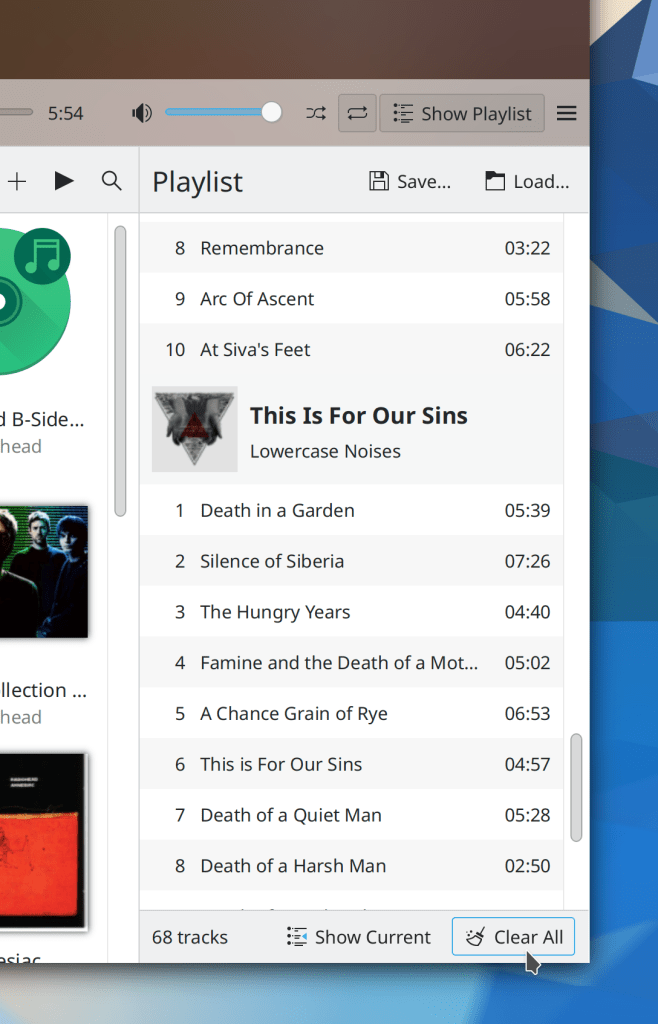
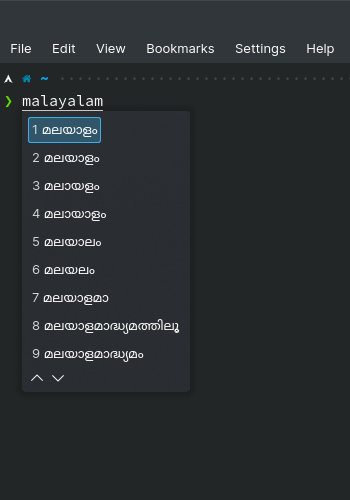
  • A KHamburgerMenu toolbar button is just another ordinary toolbar button, so you can move it to another place, give it some text, change its icon, or remove it entirely if you are a fussy advanced user who wants no menubar and no hamburger menu. It’s your choice! The system adapts to you, not the reverse.
  • KHamburgerMenu menus provide emergency access to the full menu structure in case the curated set of actions isn’t enough, which eliminates the need to remove features to conform to the new UI style for apps that do adopt it!
  • KHamburgerMenu menus show keyboard shortcuts, so they teach the user how to become more proficient in using the software!
  • KHamburgerMenu menus let you click-drag-release to quickly trigger an item!
  • KHamburgerMenu menus are traditional menus, so they aren’t limited to the dimensions of the window even on X11, further reducing the pressure to make them as small as possible!
  • KHamburgerMenu can modify the contents of its menu according to what’s visible on the toolbar. For example in Dolphin, the menu can avoid showing the “Sort By” item because this would be redundant with the one on the toolbar, but if you remove that button from the toolbar… it can become visible in the hamburger menu!
Again, this layout is not final! 🙂

I think KHamburgerMenu will truly bridge the gap for KDE’s moderately powerful QWidgets-based apps like Dolphin, Okular, Gwenview, Konsole, KWrite, and KCalc–providing the space savings and pleasing single entry point of GNOME-style hamburger menus, without its drawbacks of being inflexible, mandatory, limited in size, hiding keyboard shortcuts, and requiring that adopting apps remove functionality. If we get it right, our flagship apps will feel much more approachable while not losing any of their powerful features or customizability. Doing this in a flexible and optional way is more work, of course–and if we’re honest with ourselves, it will probably lead to more corner-case bugs. But that’s the KDE way. 🙂 We have to be true to who we are, even when we march boldly into the future!

This week in KDE: KHamburgerMenu and some good bugfixes

Today I’d like to introduce an interesting new component that will eventually be rolled out in many KDE apps with menubars: KHamburgerMenu. This re-usable component allows QWidgets-based apps to show a custom hamburger menu w2hen the main menubar is hidden, like Dolphin already does. In fact, we are in the process of porting Dolphin’s custom implementation to use KHamburgerMenu. Here’s a sneak peek of the early alpha work:

NOTE: this layout is not final and is highly likely to change!

Adopting KHamburgerMenu offers KDE apps many features and advantages:

  1. It offers an escape valve for users who hide the menubar by accident! This is a surprisingly serious problem, and KDE’s bugtracker is littered with reports from users who did not figure out how to show their menubar again!
  2. It allows users who want maximum vertical space to choose to hide the menubar without losing GUI access to the menu items, or having to activate the titlebar-based menubar or global menubar (maybe they don’t like those; we’re all about choice in KDE after all!).
  3. Being a re-usable framework, KHamburgerMenu can be applied to KDE apps besides just Dolphin.
  4. Though the hamburger menu shows a curated assortment of items from the main menubar, the app’s full menu structure is available from a sub-menu on the bottom (See “For 83 more actions:”, in the screenshot above) so nothing is ever completely hidden. This means that the curation of items can be more selective because there is no longer a need to cram everything into the main level to make sure it isn’t totally invisible to the user. This will result in hamburger menus whose contents are short and relevant.
  5. The new hamburger button is just a regular toolbar item like all others, so you can relocate it, rename it, change its icon, or remove it entirely if you really do want to hide the menubar and not use a hamburger menu.

Big thanks to Felix Ernst for this work! It has been merged for Frameworks 5.81, and we are working on porting Dolphin and Gwenview to use it, hopefully to land in their 21.08 releases. And hopefully more will be coming too.


Some of you may be wondering, “Does KDE plan to kill off the menubar the way GNOME did? Have your feelings on this matter changed since you wrote a scathing criticism of headerbars and hamburger menus back in 2018?” My answers would be 1) no, we have no intention of killing off traditional menubars especially for large and complex apps, and 2) yes, my personal feelings on Hamburger menus have changed somewhat over time, particularly because KHamburgerMenu is engineered to avoid what we see as the drawbacks of the GNOME-style hamburger menu. However, I’ll have to expand on that in another blog post because this intro section is getting waaaaay too long! So stay tuned.

Edit: here you go: https://pointieststick.com/2021/04/03/how-i-learned-to-stop-worrying-and-love-the-hamburger-menu

Anyway, here’s the rest:

Bugfixes & Performance Improvements

When Dolphin is configured to restore history on launch (as it does by default), if it is launched with a URL corresponding to a location that was already open last time, it now opens and focuses that location, rather than opening a redundant new tab for it (me: Nate Graham, Dolphin 21.04)

It’s no longer possible to use Dolphin’s “Mount ISO” action to mount the same ISO image multiple times (Kwon-Young Choi, Dolphin 21.04)

The FortiSSLVPN networkmanager plugin now works (Pedro Gomes, Plasma 5.21.4)

Single-keyboard-layout setups in the Plasma Wayland session no longer fail to load your keyboard options and variants (e.g. alternative Caps Lock behaviors) (Andrey Butirsky, Plasma 5.21.4)

Task Manager entries for apps capable of showing a numbered badge in the corner no longer sometimes pointlessly show a badge with the number zero in it (Bharadwaj Raju, Plasma 5.21.4)

Syncing your font size to the SDDM login screen now works in the case where the system is using its default font size, but that size differs from the default font size of the login screen (Eugene Popov, Plasma 5.21.4)

You can once again create new files on a writable FTP share using Dolphin’s “Create New…” menu (Méven Car, Frameworks 5.81)

The image thumbnailer no longer sometimes crashes when taking a screenshot (Méven Car, Frameworks 5.81)

The Baloo file indexer is now more reliably able to notice when files have been renamed or moved (Stefan Brüns, Frameworks 5.81)

User Interface Improvements

Gwenview’s initial window size the first time you launch it is now a more reasonable 1020×700 (me: Nate Graham, Gwenview 21.04)

Taking into account user feedback from last week regarding the new Plasma applet config dialog appearance, we decided to revert the changes and go back to the customary KDE style in the absence of consensus and work to simultaneously change all settings dialogs to use a new style (Marco Martin, Plasma 5.22):

Search fields in Discover and the “Get New [thing]” dialogs now automatically initiate a search a few seconds after you finish typing, if you haven’t already pressed the Enter key by that point (Dan Leinir Turthra Jensen and me: Nate Graham, Frameworks 5.81 and Plasma 5.22)

The Digital Clock Applet’s option to always display the local timezone is now presented in a clearer way in the settings window (Momo Cao, Plasma 5.22):

When using our Breeze GTK theme, scrollbars in ancient GTK2 apps now look more similar to Breeze-style scrollbars in Qt apps (Marco Rebhan, Plasma 5.22)

…And everything else

Keep in mind that this blog only covers the tip of the iceberg! Tons of KDE apps whose development I don’t have time to follow aren’t represented here, and I also don’t mention backend refactorings, improved test coverage, and other changes that are generally not user-facing. If you’re hungry for more, check out https://planet.kde.org/, where you can find blog posts by other KDE contributors detailing the work they’re doing.

How You Can Help

Have a look at https://community.kde.org/Get_Involved to discover ways to be part of a project that really matters. Each contributor makes a huge difference in KDE; you are not a number or a cog in a machine! You don’t have to already be a programmer, either. I wasn’t when I got started. Try it, you’ll like it! We don’t bite!

Finally, consider making a tax-deductible donation to the KDE e.V. foundation.