KDE email, part 3: don’t filter your email

This is part 3 in my series about email management, with the prior one being about using email client apps. This one is about trying to use email filtering to handle email overload.


You’re getting too much email

It’s a flood — no, a deluge! Hundreds of messages a day. Overwhelming. Demoralizing. Soul-crushing. The thought of even looking at your email provokes anxiety.

What to do?

Email filtering to the rescue! Use sieve (KMail even includes an app for it!) to implement a bevy of server-side filtering rules that send emails to different folders. So neat and tidy. So clean. So organized. So much better… not!

Filtering doesn’t work

You started with the problem of “I get too much email to comfortably handle”. With filtering, you’ve split up the “too much email” into multiple folders, but all those folders put together are still impossible to comfortably handle.

You may have told yourself that this system helps you prioritize, because the most important emails go to your inbox.

But it’s not true; an email’s importance can have much more to do with its content than the characteristics you’re probably using for filtering (sender, mailing list ID, subject line, etc).

For example:

You commented on a bug report, and then someone else replied to your comment with a question. The email notifying you about their reply got filtered into oblivion, so you missed it, and now that person thinks you’re rudely ignoring them, or negligent, or incompetent. That’s damage both to your reputation, and to KDE’s. This is what leads people to whine “KDE doesn’t care!” on social media.

Also, the properties you filter against change over time, which means mail filtering requires maintenance to keep the important emails in your inbox — maintenance that you’ll eventually tire of doing and neglect.

Which means some important emails will still be shunted away to folders you aren’t checking regularly. Which means you’re still missing them. Which means filtering hasn’t solved the problem of missing emails and being perceived as unreliable or rude.

I get it. Filtering is tempting. But it’s just covering up the actual problem. There are only three real solutions to “too much email”:

1. Spend more time processing emails

For a busy professional like you, email is a task list that other people can add items too.

This is terrible, but it’s also a professional obligation, so you need to block out time to handle those tasks somehow. Yet spending tons of time on it will burn you out!

So minimize this to only what’s absolutely necessary to avoid your inbox becoming more full over time. Make the “number of emails in the inbox” trend-line negative. Which means you need to…

2. Get fewer emails

Every minute you put into reducing emails will pay you back 100x over the next few years.

  • The project you’re regularly working on or monitoring via a website? Turn off email notifications; you’ll see stuff on the website.
  • That mailing list for a project you haven’t had any involvement with in years? Unsubscribe.
  • Merge requests for a project you’re only tangentially interested in? Un-watch in your notification preferences.
  • Notifications about things happening in real-time? Switch to a daily digest in your email preferences, or unsubscribe and set aside a time to check that thing manually.
  • Marketing emails for literally everything? Unsubscribe.
  • News? Unsubscribe unsubscribe unsubscribe! You’ll learn about anything important in another way.
  • Emails about bills and payments you have to make? Put them on auto-pay, then delete the “payment submitted” emails without even looking at them.

And so on. In the “email as task list” model, you have to reduce the number of people, groups, and companies who can assign you email-tasks, or you’ll go mad. Do it, do it now!

C’mon, kill those emails!

3. Increase speed of processing emails

A key part of this is using an email client, which I wrote about earlier. Learn your tools! Use keyboard shortcuts. Aggressively delete and archive emails after you handle them. I like automatic color tagging, which I wrote about back in 2024. There are lots of techniques to process emails faster, and I’ll write about some of them later.

But focus on solving the problem, rather than hiding it.


The important part is to see email as a job skill you can commit to getting better at, just like programming, debugging, or source management using git. Don’t accept that you suck at email, give up, and hide the problem under the rug. Get better! Filtering is a tool that holds you back and prevents you from learning stronger email management skills.

Ditch the filtering habit. It’ll be hard at first, but you can push through that and solve the real problems of too much email, un-optimized workflows, and fear of managing email due to lack of the first two.

You can do it! I believe in you!

KDE email, part two: use an email client

One of the many benefits of going to in-person sprints is you get to see how other people use their computers, and you can learn some workflow tricks from them. Or, you might notice areas of inefficiency and share tips of your own.

This post will be about the latter, on the subject of email.

Because during the sprint, I observed multiple people using email on their laptops in ways that are slow or ineffective:

  • Logging into webmail in a web browser
  • Switching between multiple webmail sites to manage multiple email accounts
  • Clicking on buttons in the webmail UI to delete or reply to messages

If you recognize yourself here, there’s a better way, I promise. 🙂 And I’d like to help you achieve it!

Back in 2024, I wrote about my email workflow and offered some general tips for managing email overload in KDE. I’m going to write more in depth about this topic, today starting with…

Use an email client app.

KDE has one: KMail. If it works well for you, use it! If it doesn’t, use Thunderbird instead, it’s fine. Don’t feel guilty for not using a piece of KDE software. Nobody’s gonna excommunicate you from KDE! I’m officially giving you permission.

Maybe you use an email client on your desktop but haven’t set one up on your travel laptop yet? Well, it’s time!

Because the important part is to consistently use an email client app of some sort. Why?

Way better for multiple accounts

Most of us have 2 or more email accounts. With webmail, this becomes a pain that scales linearly with the number of accounts.

With an email client app, you can manage multiple accounts’ worth of emails in one UI. When all your accounts are managed from one app, your brain doesn’t need to learn and remember multiple UIs, and and opening new email accounts doesn’t scale the mental burden at all.

Faster to use

An email client app lets you interact with emails using learnable and consistent keyboard shortcuts. Processing emails this way is super fast, so you can get done quickly and go back to something useful. Email sucks; life’s too short to waste time on it.

Easier to access

You can access the email client app easily using the Task Switcher, Overview, or Alt+Tab, rather than letting those webmail tabs get buried among your 75 normal browser tabs and 10 pinned tabs.

Easier to leave email mode

Quit the email client app when you want to stop receiving emails.

For webmail, you’re tempted to leave it open in a tab forever, which means to avoid being constantly tortured with email notification, you’ll have to turn them off entirely, so you stop noticing emails when they arrive. This is problematic for the “keep my email open all day” approach where the whole point is being able to action new emails immediately so they don’t pile up.

Using an app that can be turned off also facilitates being a “check email once a day” kind of person, if that’s your jam. Open the app, check your email, action the important ones, delete or archive all of them, then close the app. You can carve out 5-20 minutes for email, be free of email for the rest of the day, and still keep on top of everything!

Using good tools is enjoyable

Imagine trying to manage versions or debug code without git or gdb. It would take ages and the results wouldn’t be as good. Proficiency with these tools makes you feel like a bird soaring above the clouds or a wizard effortlessly wielding powerful magic, not some clod stumbling around in the mud.

Email clients are the same way. Learn powerful tools to bolster your professional skills and feel better about the process of participating in KDE, not just the outcomes.


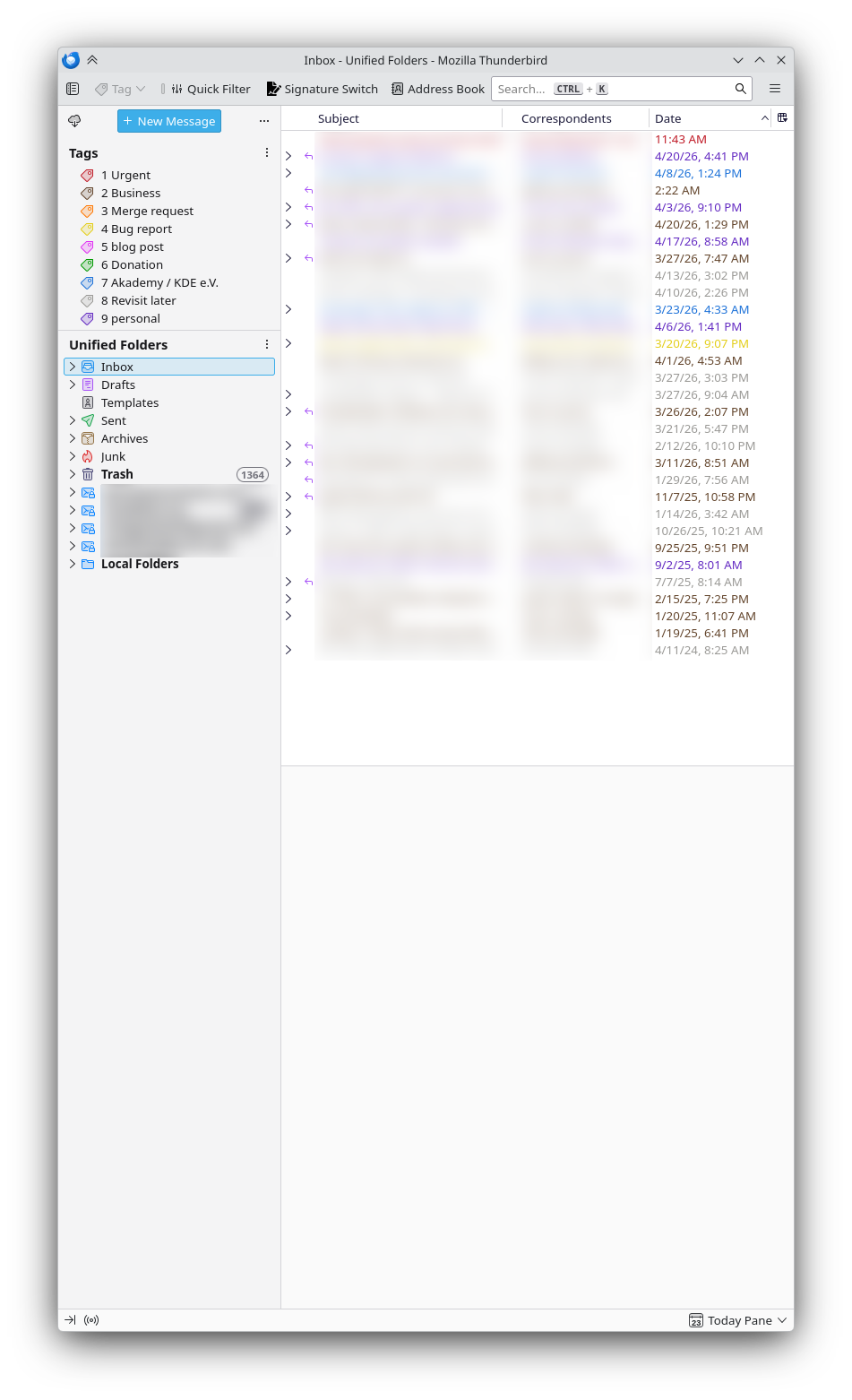
The Thunderbird email client is the foundation of my email system. In conjunction with other techniques — which I briefly described in the earlier post and will flesh out in more detail over the coming weeks — this is currently my email situation:

Thunderbird email client window showing not too many emails

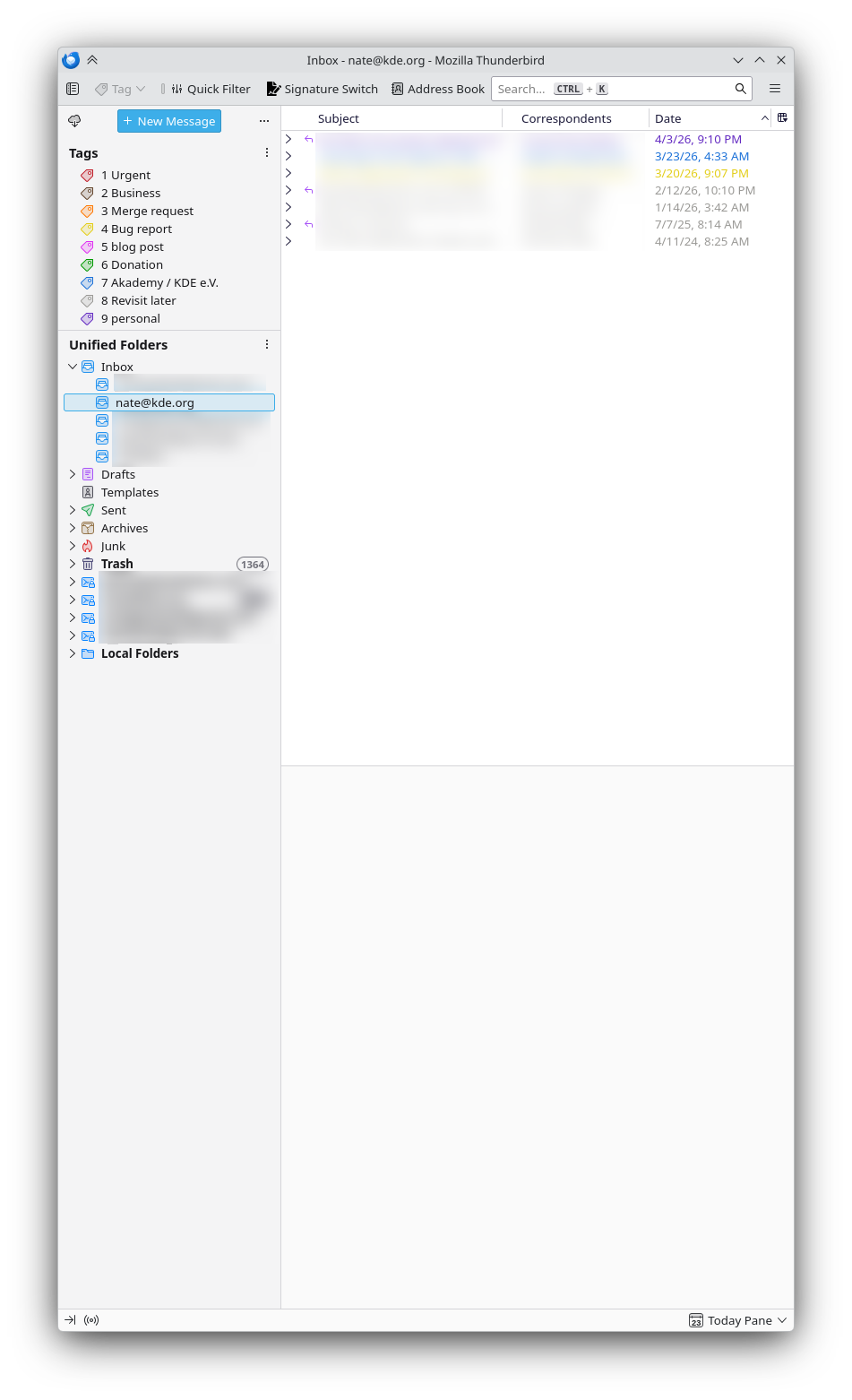
Those are all of my emails across 5 accounts. Here are just my KDE emails:

As you can see, this is completely manageable. It takes practically no effort to keep it this way, and there’s no feeling of dread when checking emails in the morning. If you’re drowning in email, you can get here too, I promise.

It starts with using an email client. If you aren’t regularly using one yet, it will take some up-front work, and some re-training, but it’s worth it: you’ll spend less time and mental resources on email and more of it on what actually matters — without taking the easy path of neglecting email and being perceived as a person who’s hard to contact or unreliable.

So get started today with KMail or Thunderbird!

How I manage my KDE email

Every once in a while people ask me about my email routine, so I thought I’d write about it here.

Everything I do starts with the philosophy that work and project email is a task queue. Therefore an email is a to-do list item someone else has assigned to me.

Ugh, how horrible! Better get that stuff done or rejected as soon as possible so I can move on to the stuff I want to do.

This means my target is inbox zero; achieving it means I got all my tasks done. Like everyone, I don’t always achieve it, but zero is the goal. How do I work towards it?

#0: Separate KDE and non-KDE emails

When I’m not in KDE mode, I want to be able to turn that stuff off in my own brain. To accomplish this, I have a home email account and a KDE email account. I adjust all my KDE accounts to only send email to my KDE address.

#1: Use an email client app

To manage multiple email accounts without going insane, I avoid webmail. In addition to not supporting multi-account workflows, it’s usually slow, lacking useful features, and has poor keyboard navigation.

I currently use Thunderbird, but I’m investigating moving to KDE’s KMail. Regardless, it has to be a desktop email client that offers mail rules.

Read more about the benefits of using an email client here.

#2: Automatic categorization (0 minutes)

I configure my email client with mail rules to automatically tag emails with colored labels according to what they are, and then mark them as read:

This results in almost all newly-arrived emails becoming colored and marked as read:

When I get a new kind of automated email that didn’t automatically receive a color label, I adjust the rules to match that new email so it gets categorized in the future, too.

#3: Manual categorization (1-3 minutes)

When I first open my email client in the morning, everything will be categorized except 5-15 emails sent by actual people. To see just these, I’ll filter the inbox by unread status, since all the auto-categorized colored emails got automatically marked as read.

Then it’s time to figure out what to do with them. For anything that needs a response or action today, I mark it as urgent by hitting the “1” key. For anything that needs a personal response in the next few days, I hit “9” to tag it as personal and it becomes green. And so on.

Any emails that don’t need a response get immediately deleted. I never miss them. It’s fast and painless. Put those emails out of their misery.

#4: Action all the urgent emails (5-15 minutes)

Urgent means urgent; first I’ll go through these one at a time, and action them somehow. This means one of the following:

  1. If it’s from a person, write a reply and then delete the email.
  2. If it’s from an automated system, open the link to the thing it’s about in a web browser and then delete the email.

The email always ends up deleted! For people like us emails are not historical records, they’re tasks. Do you need to remember what tasks you performed 8 years ago on Tuesday, May 11th? Of course not. Don’t be a digital hoarder; delete your emails. You won’t miss them.

At this point I may realize that I was overzealous in tagging something as urgent. That’s fine; I just re-tag it as something else, and then I’ll get to it later.

#5: Action all the merge request emails (5-10 minutes)

Since my day job is “quality assurance manager”, these are important. I’ll go through every automated email from invent.kde.org about merge requests for repos I’m subscribed to and action them somehow:

  1. Open the link to the merge request in my web browser, and then delete the email.
  2. Decide I don’t need to review this particular merge request, and just delete the email.

More deletion! I never keep these emails around; they’re temporal notifications of other people’s work. Nothing worth preserving.

#6: Action all the bug report emails (5-15 minutes)

My web browser is now filled up with tabs for merge requests to review. Now it’s time to do that for relevant bug reports. I follow the same process here: open the bug report in my web browser because it needs a comment or other action from me, and then delete the email — or else immediately delete the email because it’s not directly actionable. Delete, delete, delete. It’s the happiest word when it comes to email. Everyone hates emails; delete them! Show them you mean business.

#7: Do actual work

At this point I’ve spent between 15 and 40 minutes just on email, ugh. Time to do some actual work! So now I’ll spend the next several hours going through those tabs in my web browser, from left to right. First reviewing merge requests, then handling the relevant bug reports (closing, re-opening, replying to comments, changing metadata, marking as duplicate, CCing others, etc). During this step, I’ll also triage the day’s new bug reports.

Sometimes I’ll check email again while doing these, since more will be coming in. It’s easy to delete or action them individually.

After all these tabs are closed, hooray! I have some time to be proactive instead of reactive! Usually this amounts to 0-120 minutes a day during working hours. I try to spend this time on fixing small bugs I found throughout the day, opening and participating in discussion topics about important matters, working on the KDE HIG, and sometimes helping people out on http://www.discuss.kde.org or http://www.reddit.com/r/KDE.

#8: Action all the rest of the emails (10-25 minutes)

Towards the end of the day I’ll look at the emails marked as “Personal” and “KDE e.V./Akademy” and try to knock a few out. It’s okay if I’m too tired; these aren’t urgent and can wait until tomorrow. After a few days of sitting there, I’ll mark them as urgent.


And that’s pretty much it! This is just my workflow; it doesn’t need to be yours. But in case you want to try it, here are answers to some anticipated objections:

Ugh, that sounds like it takes forever!

It really doesn’t.

On a Monday maybe it takes more like 35 or 40 minutes since there are emails from the weekend to process. But on Tuesday through Friday, it’s closer to 15-20 minutes. Often 10 on Friday. Thanks to the automatic categorization, all of this is much faster than manually looking at every email one by one, and much more effective than getting depressed by hundreds of unread emails in the morning and ignoring them.

Deleting emails is too scary, what if I need them in the future?

You won’t.

But if that’s too scary or painful, set up your email account or client app to archive “deleted” messages in permanent storage rather than truly deleting them. Just keep in mind that you’ll eventually run out of storage space and have to deal with that problem in the future. Once it happens, consider it an opportunity to reconsider, asking yourself how many emails you actually did need to dig out of cold storage. I’m guessing the number will be very low, maybe even 0.

This might work for your workflow, but I get different types of emails!

Maybe so, but the general principle of automatically tagging (but not moving) emails applies to anyone. I firmly believe that anyone can benefit from this part. Make the software do the grunt work for you!

What do I do about all of those the old emails in my inbox? There are too many, I’ll never get through them!

If you’re one of those people who has 50,000 emails in your inbox, select all and delete. You won’t miss any of them.

Seriously. All of them. Every single one. Right now. Just do it.

How do I know this is fine?

  • Old notifications about things like bug reports or merge requests are worthless because they already happened. Delete.
  • Old mailing list conversations long since dried up or got actioned without your input. Delete.
  • Old at-the-time urgent emails from important people are no longer relevant, because the people who sent them long ago concluded that you’re unreliable and decided to not contact you again. Because that’s what happens when you let emails pile up: you’re being rude to all the people whose messages you’ve ignored. Feel sad, resolve to do better, then delete.

The good news is that you can get better at this anytime, but it’s almost impossible without making a clean break with a messy past. You’ll be looking at old stuff forever and won’t have time for new stuff.

I just get too much email, it’s impossible to keep up no matter what I do!

You need to unsubscribe from some things. Maybe a lot of things. Longtime contributors to any project will have accumulated years worth of subscriptions to sources of emails that are no longer relevant. Prune them!

This may trigger Fear Of Missing Out. Recognize that and fight against it. You can almost always reduce your email load by unsubscribing from this stuff:

  • Activity in Git repos for projects you no longer contribute to.
  • Bug reports for products you aren’t involved in or responsible for anymore.
  • Medium to high traffic mailing lists that are mostly or entirely irrelevant to your present interests and activities.
  • Almost all the spam from LinkedIn.
  • All the spam from online stores, newspapers, political campaigns. The “unsubscribe” button will work, don’t give up!

Resist the temptation to filter these emails into folders that you tell yourself you’ll remember to look at once in a while. You probably won’t, and by the time you do, everything in them won’t be actionable anymore — if it ever was in the first place. Unsubscribe and delete!


If you’d like to read more on this topic, I’ve started a follow-up series here.

Free software wisdom

Every week veteran KDE contributor Kevin Ottens posts a bunch of thought-provoking links on his blog, and last week’s post contained one that I found particularly enlightening:

40 years of programming

It’s a collection of wisdom written from someone named Lars Wirzenius who started his software development career decades ago and has seen it all. While I don’t have 40 years of programming under my belt, I do have 16 years in programming, QA, release engineering, and management, and everything Lars wrote rings true to me. I’d encourage everyone to give it a read!

Here are my favorite takeaways:

  • Take care of yourself, or else you’re no good to others.
  • Useful software is too big to create alone, so your most important skill is the ability to collaborate.
  • Write caveman code anyone can understand, unless complexity can be justified by measurably and consistently better performance.
  • Do work in small chunks, and repeat.
  • Diversity of perspective is important, or else you’ll end up accidentally making something that only works for a narrow slice of people.
  • Know who the intended user is, and try to see things from their point of view.
  • Developing software is political. Deal with it.
  • Learn to write, and write stuff down.

But do check out the whole thing!

Tips & tricks: handwritten signatures in Okular

Today I’d like to share a tip about Okular, KDE’s flagship document reader app that’s eco-certified in Germany and used professionally around the world to secure documents.

Okular has robust support for digitally signing documents using a cryptographic signature, and it’s going to become even better soon. But what about signing documents using handwritten signatures, for those who live in places where digital signing hasn’t caught on yet?

Now, this is typically the point at which everyone who lives in a place where cryptographic signatures are common will chime in about how handwritten signatures are pointless and insecure. And they may be right, but it doesn’t matter because handwritten signatures are still used and considered valid in most of the world. And thankfully for people who live in any such part of the world, Okular turns out to support them pretty well.

The process involves some setup that you do once, and then after that’s done, the process of signing documents is suuuuuuuper simple. The time invested is worth it, trust me! So here’s how:

One-time setup process

First, you’ll need a piece of paper. Write your handwritten signature on it:

But, you know, for real

Next, scan it with SkanPage or take a picture of it with your phone and then transfer it to your computer using KDE Connect. You’ll end up with an image on your computer like this:

Open it up in Gwenview. Click the “Show Editing Tools” button in the toolbar to show the “Image Operations” sidebar. On this sidebar, click the “Crop” button and crop the image so that only the signature part is visible.

Then Click the “Adjust Colors” button:

Boost the contrast and brightness and reduce the gamma to make the background become completely white, and make the text look darker. But don’t make the text look completely 100% black; you want to preserve the appearance of real pen-strokes. It may take a bit of tweaking but keep at it! The end result will be something like this:

Now save this image somewhere on your computer using the PNG format–maybe in your Pictures or Documents folder. Don’t delete or move this image in the future!

Time to open up Okular. Go to the “Settings” menu and click “Configure Okular”. Then go to the “Annotations” page and click on the “Add” button:

A dialog window will appear. In this dialog window, give it the name “Insert Signature”, change the type to “Stamp”. Click on the little folder button next to the “Stamp Symbol” text field and navigate to the signature image file you just created:

If your file doesn’t appear in the “Open” dialog, that’s because you didn’t save it as a PNG. Re-save it as a PNG in Gwenview.

Click OK and you’re done!

Use it to sign a document

Now, the next time you have a document that needs signing, Open the annotations menu by clicking on the downward-pointing arrow next to the “Yellow Highlighter” toolbar button. Don’t click on the “Yellow Highlighter” text itself; click on the arrow next to it:

Now draw a box where you want the signature to be! There’s usually a “Date” field, so you can use the “Insert Text” annotation accessed from the same menu, and draw a similar box where you want the date to be. Enter the date when prompted.

Voila:

Easy as pie! Now you can do this almost instantly every time you have to sign a document.